Screen Reader Software in the Classroom: Implementation for Teachers
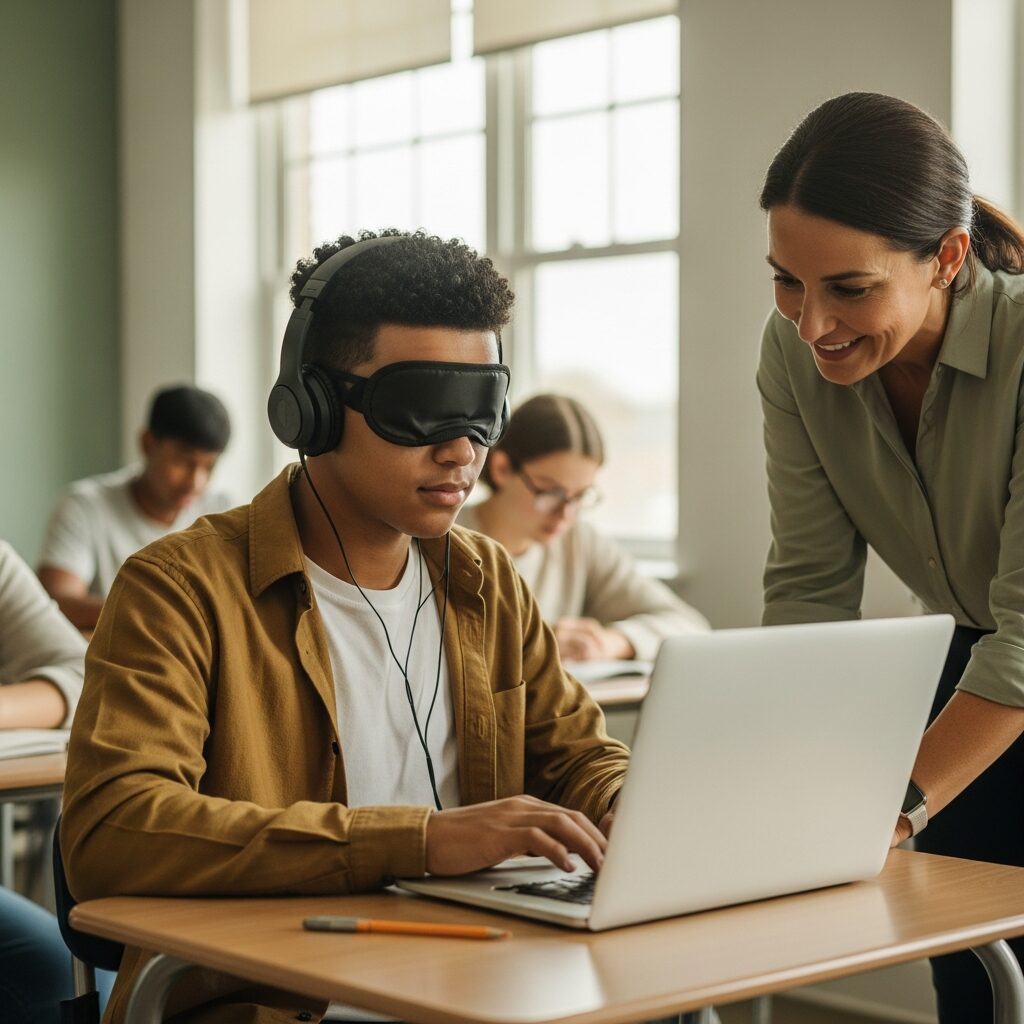
A student who uses a screen reader just joined your class, and you might be wondering how much new software you need to learn. Here is the reassuring part: you do not need to master the screen reader yourself. Your real job is to understand how screen reader software in the classroom changes the way your student works, and to make your teaching materials work with it. This guide covers the screen readers you will see, how they reshape a student’s workflow, and the small, practical changes that remove barriers for a student who is blind or has low vision. For the bigger picture of how this fits alongside other tools, see our teacher’s guide to assistive technology for students with low vision.
Which Screen Readers You Will See in the Classroom
Five programs cover nearly every classroom, and which one your student uses usually depends on the device your school already runs.
- JAWS is the most widely used screen reader in schools and workplaces. It runs on Windows, needs a paid school or subscription license, and works well with Microsoft Office and web browsers.
- Dolphin SuperNova combines screen magnification, text-to-speech, and screen reading in one solution. It is an excellent choice for students with low vision who benefit from magnification today but may require additional speech or screen reader support over time.
- NVDA is a free, open-source screen reader for Windows. It supports most everyday classroom and workplace tasks, making it an excellent choice for schools with limited budgets, although it offers fewer advanced features and customization options than JAWS or Dolphin SuperNova.
- VoiceOver is built into every Mac, iPad, and iPhone at no extra cost. If your school uses iPads, this is often the screen reader your student already knows.
- ChromeVox comes built into Chromebooks. It is fine for web-based work in Google Workspace, though it is more limited than JAWS or NVDA for heavier tasks.
You do not need to memorize the differences. Just ask which screen reader your student uses so you know what they are working with day-to-day.
How a Screen Reader Changes the Way Your Student Works
A screen reader turns your on-screen content into speech or braille, and it does that in a strict order: top to bottom and left to right. Your student hears the page one item at a time instead of taking it in at a glance.
Navigation happens entirely on the keyboard, not with a mouse. Your student moves through headings, links, and form fields using key commands, so a well-organized page is much faster to get through than a messy one.
Because audio moves through content more slowly than sighted reading, most students who use a screen reader need more time to cover the same material. Headphones also matter: they let your student listen without distracting the class, and they keep the audio private.
For many students who are blind, a screen reader is also a cornerstone of independent living well beyond the classroom, which is why the habits they build with you now matter for years. The planning takeaway is simple: build in extra time, expect a slower pace through dense visual material, and give an audio or text equivalent for anything you present visually.
How to Make Your Classroom Materials Screen-Reader-Friendly
This is where you have the most control. Accessible materials are the teacher’s main responsibility, and a few habits cover most of the work.
- Use the built-in heading styles in your documents, not just bold or larger text, so the screen reader can announce the structure.
- Add alt text to every image, chart, and diagram that carries meaning.
- Write descriptive link text, such as “open the reading assignment,” instead of “click here.”
- Keep tables simple, with a clear header row, so the content does not turn into a jumble.
- Give equations as MathML or a short spoken description rather than a picture of the math.
- Avoid handing out scanned worksheets, which are really images of text; a screen reader cannot read them until they are run through OCR.
Before you distribute anything, turn on the screen reader your student uses and listen to your own document for a minute. If it reads clearly to you, it will read clearly to your student.
Everyday Classroom Habits That Help
Small routines remove friction all year long. Let your student wear headphones without making it a point of attention. Share digital copies of everything, not just the paper handouts. Read aloud what you write on the board, since a screen reader cannot see it.
Build extra time into reading assignments and tests, and pair your student with a willing peer for group work when they consent to it. Give a heads-up before asking any student to share their screen with the class, so nobody is put on the spot.
When a Screen Reader Is Not the Whole Answer
A screen reader is not the right tool for every student or every task, and it helps to be honest about that. If your student has some usable vision, do not assume a screen reader is the answer at all. Many students read faster with magnification software or large print, and pushing audio-only can actually slow them down. For students who only need a passage read aloud now and then rather than full non-visual navigation, a lighter text-to-speech tool is often the better fit.
Heavily visual subjects, like geometry proofs or chemistry diagrams, often need tactile graphics or hands-on support from a teacher of students with visual impairments. And a screen reader cannot rescue a document that was never made accessible in the first place. The tool amplifies good materials; it does not fix bad ones.
Quick Troubleshooting for Common Screen Reader Problems
Most classroom hiccups have simple fixes. If the screen reader is silent, check the volume and confirm the audio output is set to the headphones or speaker in use. If a document reads as a jumble, check the heading structure and make sure it is real text, not a scanned image.
If a website will not cooperate, give your student the same content in an accessible format and report the site to your technology team. If your student seems frustrated, name it first, then bring in the teacher of students with visual impairments or your assistive technology specialist. And if a recent update changed how things sound, check the screen reader settings, since updates sometimes reset them.
Get Help Getting Started
You do not have to figure this out alone. New England Low Vision and Blindness works with schools to set up screen reader software and train the adults who support students who are blind or have low vision. Our assistive technology training gives teachers hands-on practice with the same tools their students rely on every day.
If you want help getting a student started or making your materials accessible, we offer a no obligation consultation with our team. The changes that help one student who uses a screen reader, like clear headings, alt text, and digital copies, end up making your materials easier for everyone in the room.
Frequently Asked Questions
Do teachers need to learn how to use a screen reader?
No. You do not need to operate the screen reader the way your student does. You do need to know that it reads a page from top to bottom, that it runs on the keyboard instead of a mouse, and how to format documents so it works well. Learning a couple of basic commands, like starting and stopping speech, is helpful but optional.
What Dolphin software is best for students and professionals with low vision?
Dolphin offers several software solutions designed to meet different vision needs. SuperNova Magnifier is ideal for users who primarily need screen magnification, while SuperNova Magnifier & Speech adds text-to-speech support for easier reading. For those who also need full screen reader functionality, SuperNova Magnifier & Screen Reader provides a complete accessibility solution. Our specialists can help determine which option best supports your goals, device, and daily activities.
How much extra time should a student who uses a screen reader get?
Plan for noticeably more time, because audio moves through a page more slowly than sighted reading. Extra time on reading assignments and tests is common and is often written into a student’s IEP or 504 plan. Ask the student or your teacher of students with visual impairments what has worked before rather than guessing.