Text-to-Speech Software and Tools for Classroom Accessibility
If a student in your classroom is straining to read the screen, or falling behind because the reading takes twice as long as it should, text-to-speech is usually the first tool to try. It is free on nearly every device your school already owns, and most students can start using it the same afternoon.
Text-to-speech (often shortened to TTS) reads digital text aloud in a synthetic voice while the student still sees the screen. For a student with low vision, that means less eye strain, faster reading, and more energy left for actually learning the material.
This guide walks through what text-to-speech does, the free tools built into school devices, the paid apps worth a look, and how to make it all work in a real classroom. You do not need to master every option. You need one tool that works for one student, and a place to start. For how text-to-speech fits alongside the other tools a student may use, see our teacher’s guide to assistive technology for students with low vision.
What is the difference between text-to-speech and a screen reader?
Text-to-speech reads selected text aloud while the student keeps using their eyes to follow along on screen. A screen reader takes over the whole device and narrates everything, so the user can operate the computer entirely by sound and keyboard, without a mouse.
That distinction matters for students with low vision. Many of them still use their remaining vision every day and only need help with the reading itself, not full audio control of the computer. For those students, text-to-speech supplements how they already learn instead of replacing it.
A student who is blind, or whose vision no longer supports reading a screen at all, is better served by a full screen reader like NVDA, JAWS, or Apple VoiceOver. Text-to-speech is the lighter-touch option: less to learn, less disruptive to the visual classroom experience, and easy to turn on and off as needed.
Which free text-to-speech tools come built into school devices?
Before you buy anything, check what is already installed. Every major platform ships with text-to-speech at no extra cost, and for many students the built-in tools are all they will ever need.
Windows
Windows includes several read-aloud options. Immersive Reader, available in Microsoft Word, OneNote, and the Edge browser, reads text aloud and highlights each word as it goes. Edge also has a Read Aloud button that voices any web page. Narrator, the built-in Windows tool, leans more toward full screen reading but can read selected text when needed.
Mac and iPad
Apple devices offer Speak Selection and Speak Screen, both found under Settings in the Accessibility menu. A student can highlight a passage and have it read aloud, or swipe down with two fingers to have the whole screen read. Safari’s Reader mode strips away clutter and pairs well with these features for cleaner listening.
Chromebook and Google Workspace
Chromebooks include Select-to-Speak, which reads highlighted text aloud with word-by-word highlighting. In Google Docs, students can add a read-aloud extension, and many districts already have one approved. These tools matter because Chromebooks are the most common device in U.S. classrooms, so this is often the fastest path to access.
Which paid text-to-speech apps are worth considering?
When the built-in tools fall short, a handful of paid programs go further with better voices, cross-device syncing, and study features. Reading Rockets, a national literacy resource, points teachers toward several of these as reliable classroom options.
Read&Write by Texthelp is one of the most widely licensed reading tools in schools and is usually purchased per district rather than per student. Kurzweil 3000 is a fuller reading platform that combines text-to-speech with study and writing supports. Voice Dream Reader, popular on iPad and iPhone, is known for natural-sounding voices and strong file support.
NaturalReader offers a free tier for basic reading plus paid premium voices, which makes it an easy trial before any purchase. For longer texts, audiobook services like Learning Ally and Bookshare provide human-narrated and accessible books to students who qualify.
How do you make text-to-speech work in a real classroom?
The tool is the easy part. Making it feel normal is what actually helps a student use it. A few practical habits go a long way.
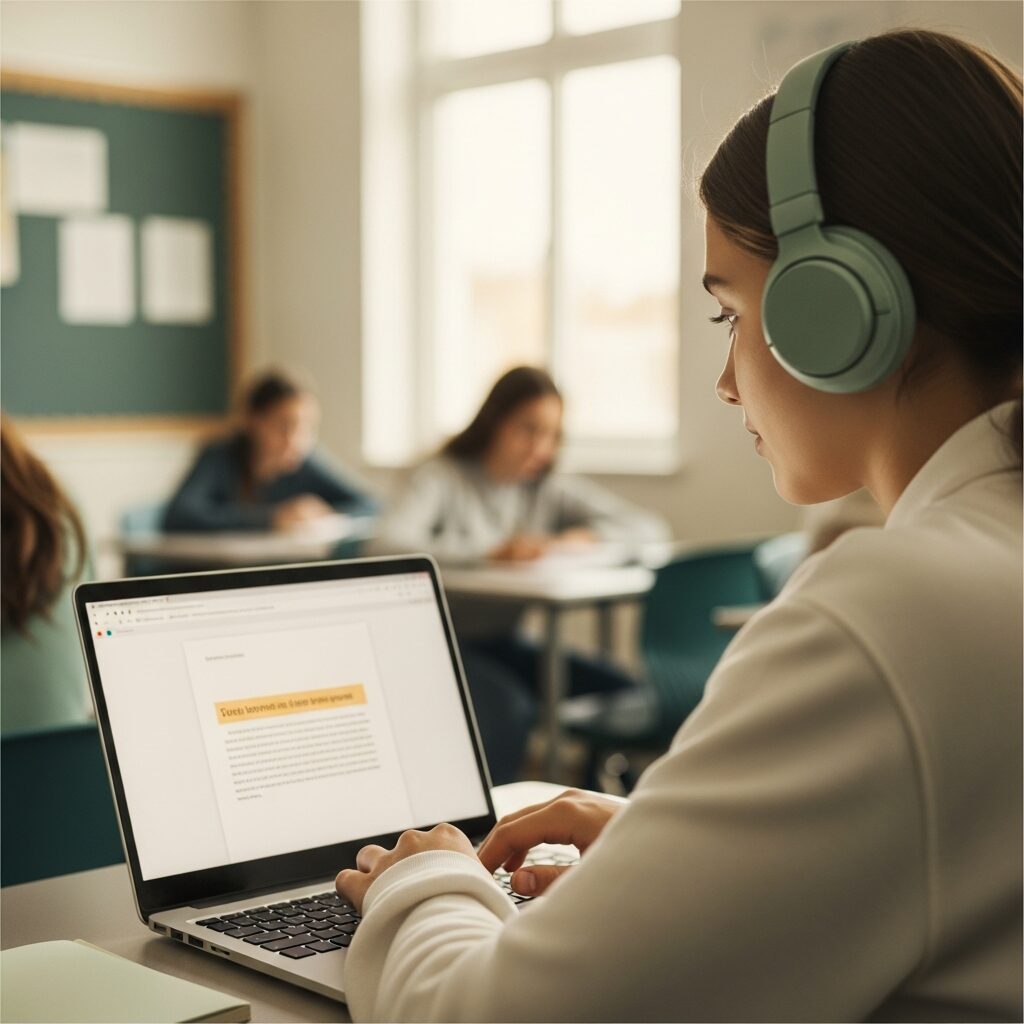
Normalize headphones. When a student can put in earbuds and listen without it being a signal that something is different, they will use text-to-speech far more often. Build it into the room’s routine rather than treating it as a special accommodation.
Pair listening with looking. Comprehension improves when a student hears the words and sees them highlighted at the same time, an approach researchers call bimodal reading (Montali and Lewandowski, 1996). Most quality tools highlight each word as it is read, so turn that feature on.
Mind the reading speed. Students often crank the speed to finish faster, but comprehension holds up best at roughly 140 to 180 words per minute (Cunningham, 2011). Start slower and let the student adjust up.
Remember that text-to-speech only reads real text. A photographed worksheet or a scanned PDF is just a picture to the software, and nothing will be read aloud. Digital materials need actual, selectable text, which is where accessible document formatting becomes essential.
When text-to-speech is not the right tool
Text-to-speech is not a fix for everything, and pretending otherwise sets a student up for frustration. If a student cannot see the screen well enough to follow highlighted text, they need a full screen reader and the training that comes with it, not a read-aloud button.
It also will not help with printed handouts, math-heavy pages full of symbols, or documents that were scanned as images. And a student who is fatigued by synthetic voices may do better with a human-narrated audiobook for long assignments, or with magnification software when the real need is to see the text larger rather than hear it. Naming these limits up front builds trust, and it points you toward the right tool faster.
How do you choose the right text-to-speech tool?
Start with the device the student already uses most. The built-in tool on that platform is free, requires no approval, and can be running in minutes, so it is almost always the right first step.
From there, weigh three things. Voice quality matters because a natural voice reduces fatigue over a long reading session. Speed control matters because the student, not the software, should decide the pace. And word highlighting matters because seeing and hearing together supports comprehension.
If the free tools cover those needs, stop there. If they do not, use a trial period before spending anything. We carry and support a range of low vision products and can help you match a student’s device and vision to the right reading tool.
Take the next step
Text-to-speech is often the simplest assistive technology to put in place and the easiest way to open the door to classroom accessibility for a student with low vision. In most cases you can start today, for free, with a tool the school already owns.
If you would like help choosing or setting up the right option, the specialists at New England Low Vision and Blindness work with schools and families every day. No obligation consultation and we will help you find a text-to-speech setup that fits the student in front of you.
Related resources
- Explore low vision technology and featured product categories
- Browse low vision products for reading and daily tasks
- Find independent living resources for students and adults
Frequently asked questions
Is text-to-speech the same as a screen reader?
No. Text-to-speech reads selected text aloud while the student still looks at the screen, which suits many students with low vision. A screen reader narrates the entire device so it can be operated without sight, which is the better fit for students who are blind. Most students with usable vision start with text-to-speech.
Does every school device already have text-to-speech?
Yes. Windows, Mac, iPad, and Chromebook all include free built-in read-aloud tools, such as Immersive Reader on Windows, Speak Screen on Apple devices, and Select-to-Speak on Chromebooks. Because Chromebooks are the most common classroom device, most students can begin using text-to-speech at no cost the same day.
Why will text-to-speech not read some documents?
Text-to-speech can only read real, selectable text. A scanned page or a photo of a worksheet is an image to the software, so nothing is read aloud. To fix it, use documents with actual text or run the file through optical character recognition first so the words become machine-readable.