Remote Work Setup for Employees with Low Vision
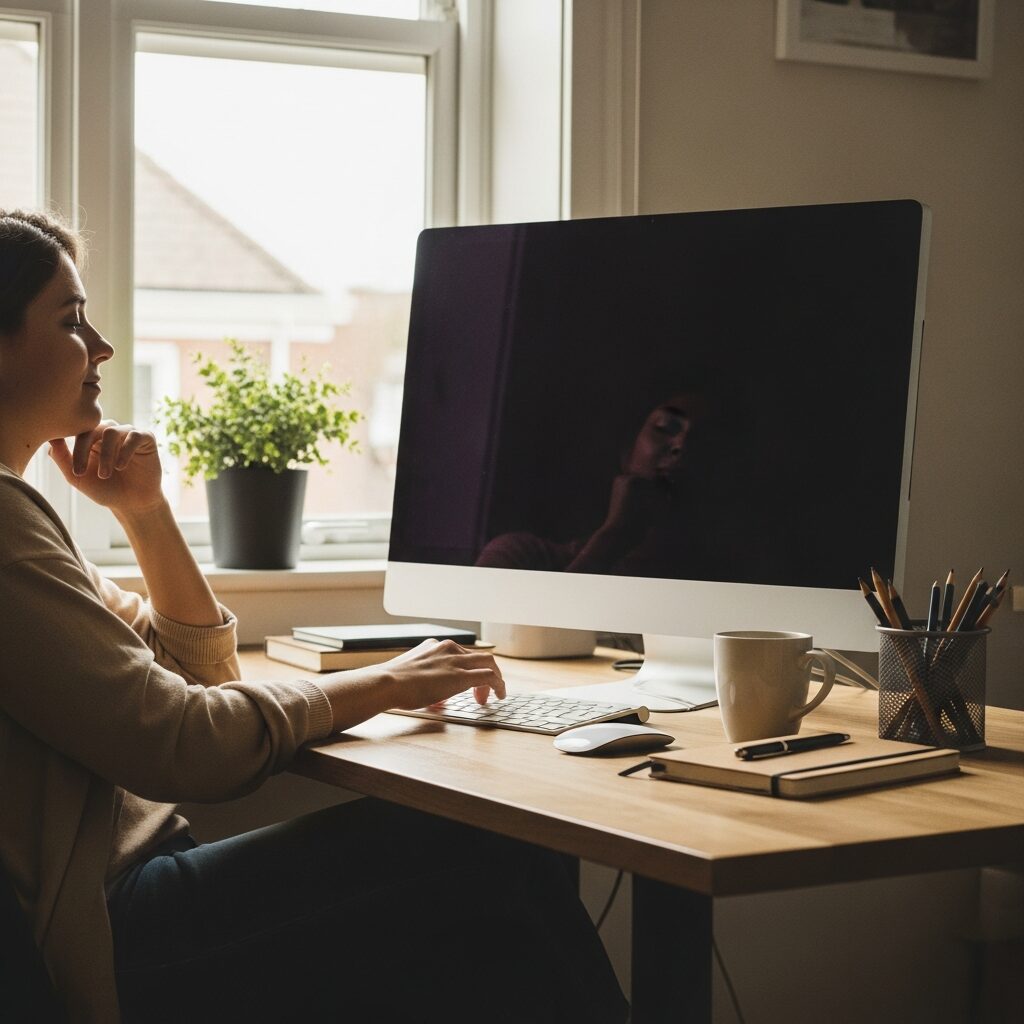
Working from home can be one of the most accessible ways to build a career when you have low vision. You control the lighting, the screen, the software, and the pace. The right setup turns a kitchen table that strains your eyes into a comfortable workspace where you can focus, contribute, and feel confident on every call.
If you are planning remote work low vision setup for the first time, start with the three things that matter most: a large, high-resolution monitor, good task lighting, and your computer’s built-in accessibility settings. Get those right and most of the daily friction disappears. The rest of this guide walks you through each piece, step by step.
Home Office Hardware for Remote Work Low Vision Setup
Your hardware does more for comfort than any single app. A few thoughtful choices reduce eye strain and let you work longer without fatigue.
Start with the monitor. A larger screen lets you enlarge text without losing your place, so look for a 27-inch model or bigger with a sharp resolution such as 4K. More pixels mean crisp letters even when you zoom in.
Here is what to prioritize when choosing a display:
- Size: 27 inches or larger gives you room to magnify without constant scrolling.
- Resolution: a 4K panel keeps enlarged text sharp instead of blocky.
- Matte finish: a non-glossy screen cuts reflections that cause glare and squinting.
- Adjustable stand: tilt and height control help you find a comfortable angle.
Position the monitor about an arm’s length away, with the top of the screen at or slightly below eye level. This angle reduces neck and eye strain over a full workday.
For input devices, a high-contrast keyboard with large, bold key labels makes a real difference. Many people find white-on-black or black-on-yellow keycaps far easier to use. A larger mouse pointer, which you can set in your computer’s settings, keeps the cursor easy to track.
If video calls are part of your role, add a simple external webcam at eye level and a headset with a clear microphone. Being seen and heard well takes pressure off you during meetings. The kind of equipment that works best often depends on your role, and our guide to assistive technology by job type can help you match tools to your daily tasks.
Software and Accessibility Settings
Before buying anything extra, explore the accessibility tools already built into your computer. They are free, powerful, and often all you need to make remote work comfortable.
On Windows, open Settings and look under Accessibility. You will find Magnifier, which enlarges all or part of the screen, plus options for larger text, a bigger cursor, and color filters. On a Mac, open System Settings and choose Accessibility, where Zoom, Display contrast, and Increase Contrast live.
Here is a simple starting routine for your accessibility settings:
- Turn on screen magnification and practice zooming in and out with a keyboard shortcut.
- Increase the system text size and pointer size until they feel comfortable.
- Try dark mode or a high-contrast theme to see which reduces glare for you.
If you read for long stretches, screen-reader software can take the load off your eyes by speaking text aloud. Windows includes Narrator and Mac includes VoiceOver, and many people use the popular screen reader NVDA on Windows as well. You do not have to choose between magnification and audio. Many people use both, magnifying when scanning and listening when reading at length.
In your web browser, increase the default zoom and turn on a reading mode that strips away clutter. High-contrast browser extensions can also make busy websites easier to use.
Video Conferencing Accessibility
Video calls are part of most remote jobs, and the major platforms include accessibility features that many people never discover. A few minutes of setup makes meetings far less tiring.
Zoom, Microsoft Teams, and Google Meet all offer live captions, which display spoken words as text on screen. Turning captions on gives you a second way to follow the conversation when audio alone is hard to track.
When someone shares their screen, use your own magnification tool to zoom into the shared content rather than relying on the small window. You can also ask presenters to increase their font size, which most people are glad to do.
These settings are worth turning on before your next meeting:
- Live captions, so spoken words appear as readable text.
- Speaker view, which keeps the active speaker large and centered.
- A larger chat font, adjusted in the platform’s accessibility menu.
Do not forget your own visibility. Sit facing a window or soft lamp so your face is well lit, and keep the camera at eye level. When colleagues can see you clearly, calls feel more natural and connected.
Digital Collaboration Tools
Day-to-day work happens in shared documents, chat apps, and project boards. These tools work well with assistive technology when they are set up thoughtfully.
Communication apps like Slack and most email programs let you increase the text size and switch to a dark theme right in their settings. Take a moment to adjust these on each app you use often.
Shared documents are easier when everyone follows simple habits. You can ask teammates for accessible file formats and clear structure, which helps your screen reader and magnifier work smoothly.
A few requests make collaboration far smoother:
- Ask for documents with real headings instead of just bold text, so you can navigate by structure.
- Request editable files like Word or Google Docs rather than scanned images or flattened PDFs.
- Encourage alt text on charts and images shared in your team channels.
These small adjustments are reasonable accommodations, and most teammates are happy to help once you explain why they matter.
Lighting and Environment
Lighting is the most impactful and least expensive change you can make for remote work low vision comfort. Getting it right often does more than any gadget.
Add an adjustable task lamp beside your desk for reading printed pages and handwritten notes. A lamp you can angle and dim lets you control brightness exactly where you need it.
Glare is the enemy of comfortable screen time. Position your monitor so windows are to the side rather than directly behind or in front of it, and use blinds or curtains to soften strong afternoon light.
Keep these lighting habits in mind as you arrange your space:
- Use even, indirect light across the room to avoid harsh shadows.
- Match your screen brightness to the room so the display does not feel too harsh.
- Place a soft light in front of you for video calls so your face stays visible.
A simple, uncluttered background also helps on camera and keeps your workspace calm and easy to scan.
Asking Your Employer for Remote Accommodations
You do not have to pay for an accessible home office on your own. Employers are often responsible for funding the equipment that lets you do your job, including monitors, software, and assistive technology.
Start by listing what you need and connecting each item to a specific work task. A short, practical request is easier for a manager or HR team to approve.
When you are ready to ask, it helps to:
- Describe the task and the tool that helps, such as a larger monitor for reviewing spreadsheets.
- Frame requests as accommodations that help you perform your role well.
- Keep a friendly record of what you asked for and what was approved.
Understanding your rights makes these conversations easier. Our overview of ADA accommodations for low vision explains what the law supports, and our pillar guide to workplace accessibility for low vision covers the bigger picture of accessible employment.
If cost is a concern, state programs can help. Many people find support through vocational rehabilitation and assistive technology funding, which can cover equipment and training for work.
Frequently Asked Questions
What is the best monitor for remote work with low vision?
For remote work low vision, a 27-inch or larger 4K monitor with a matte finish is a strong starting point. The large size and high resolution let you enlarge text and keep it sharp, while the matte screen reduces glare that causes eye strain.
Do I need special software, or can I use built-in tools?
For many people, the accessibility features built into Windows and Mac are enough. Magnification, larger text, high contrast, and a built-in screen reader cost nothing and are a good place to start before buying additional software.
Are video calls accessible with low vision?
Yes. Zoom, Teams, and Google Meet all offer live captions, speaker view, and adjustable chat text. You can also use your own magnifier to zoom into shared screens during a meeting.
Will my employer pay for accessible equipment?
Often, yes. Accessible equipment is commonly treated as a reasonable accommodation, and many employers fund monitors, software, and assistive technology. State vocational rehabilitation programs can also help cover costs.
Take the Next Step
Building an accessible home office is easier with someone who knows the tools and can match them to your vision and your work. You do not have to figure it all out alone.
Our specialists can help you choose the right monitor, software, and lighting for the way you work. Schedule a no-obligation consultation and take the next step toward working with confidence.