Tech Tools That Boost Engagement for Low Vision Students: Effective Solutions for Inclusive Classrooms
How Tech Tools Transform Engagement for Low Vision Students
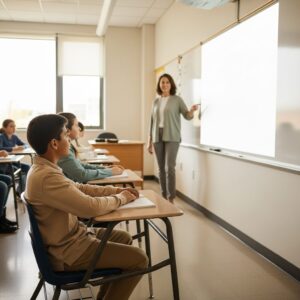
Supporting students with low vision in the classroom takes more than just good intentions—it requires the right resources. Leading-edge tech tools that boost engagement, like video magnifiers and screen readers, can help these students access information and participate more fully in their education. From simple magnifiers to digital learning platforms designed with accessibility in mind, these technologies remove many of the barriers faced by visually impaired students.
We know that increased engagement helps build confidence and independence. When students have the tools they need, they become more active learners and connect better with their classmates and teachers. For educators working with low vision students, understanding which technologies offer the most impact can make a real difference every day.
Core Assistive Technologies for Low Vision Engagement
Assistive technology is essential for improving how students with low vision connect with their lessons. By using the right mix of tech tools—like screen readers, speech-to-text programs, video magnifiers, and braille displays—we help each learner stay active and engaged in class activities.
Screen Readers Overview
Screen readers are software programs that convert text and images on a computer screen into speech or braille. These tools help students with low vision independently access digital textbooks, emails, and online resources. Popular screen readers such as JAWS and NVDA provide clear spoken feedback for almost any task on a computer.
Screen readers support different languages and can be customized for students’ unique needs. Key features include keyboard shortcuts, navigation by headings, and the ability to describe images with alt text. In group settings, they enable students to follow along in real time with classmates.
We recommend regular training for both students and teachers. This ensures everyone can use these assistive technologies to their fullest potential, reducing frustration and fostering confidence.
Speech-to-Text Solutions
Text-to-speech technology allows students to speak and instantly see their words appear as text on a screen. This is helpful for writing essays, answering questions, or taking notes when typing is challenging. Many computers and tablets come with built-in speech-to-text features, while dedicated apps and programs offer even more accuracy.
These solutions work well during lectures or classroom discussions. Students can dictate their responses and complete assignments faster with less strain on their eyes. Some speech-to-text tools can recognize and learn the user’s voice over time, further improving accuracy.
Teachers of the visually impaired play a key role in showing students how to use these programs correctly. Regular use and practice help build comfort and boost classroom engagement.
Video Magnifiers and Enlargers
Video magnifiers use a camera to project enlarged images onto a screen, making printed text, images, and worksheets easier to see. These devices can be portable or desktop-based, with some linking directly to computers or interactive whiteboards. Adjustable contrast, autofocus, and color filters help students customize the view to their comfort.
A simple table to compare video magnifier features:
| Feature | Desktop Magnifiers | Portable Magnifiers |
| Screen Size | Large | Small-Medium |
| Portability | Low | High |
| Connectivity | High (PC/Monitor) | Varies |
| Customization | High | Moderate |
We see students using video magnifiers for reading assignments, taking tests, or viewing diagrams. By adjusting settings, each learner gets a clearer, more comfortable view, supporting better focus and participation.
Braille Displays and Refreshable Braille Devices
Braille displays are electronic devices with small, movable pins that create braille characters. Refreshable braille displays connect to computers, tablets, or smartphones, translating digital text into braille in real time. This lets students read documents, browse the web, and use email independently.
These devices support multiple lines of text and can be paired with screen readers for flexible learning. Their tactile feedback gives students access to math, science, and language arts content in a way that suits their learning style.
Braille displays are essential for developing braille literacy and empowering students to stay on pace with their peers. With training and ongoing support, students can use this technology to explore reading and writing in a digital world.
Accessible Digital Tools and Inclusive Platforms
Accessible digital tools boost participation and make lessons more flexible for students with low vision. By supporting text-to-speech, audio content, and personal assistants, these tools bridge many gaps in both in-person and remote learning.
Platform Accessibility Features
Most leading education platforms now include important accessibility options that give students more control over how they access materials.
- Screen readers (such as JAWS and NVDA) help convert on-screen text to speech or braille for blind or low vision users.
- High contrast modes and font size adjustments let learners customize displays for better visibility.
- Keyboard shortcuts make navigation smooth without relying on a mouse.
Some learning management systems, like Google Classroom and Microsoft Teams, offer built-in accessibility menus. These platforms support personalized learning by allowing students to adjust settings for their own needs. Regular updates often bring new features to further support students with visual impairments.
Audiobook Integration
Audiobooks are a key tool for increasing engagement among students with low vision.
- Services like Bookshare, Learning Ally, and Audible provide a wide range of titles in audio format.
- Audiobooks can be used on many devices, such as phones, tablets, and desktop computers.
We have seen classrooms where students follow along with audio textbooks during lessons or complete independent reading with audiobooks, allowing them to keep pace with sighted peers. Some digital platforms also offer synchronized text and audio, so the words are highlighted as they’re read aloud. This multimodal approach makes learning more accessible and enjoyable.
Mobile Virtual Assistants (Siri and More)
Mobile virtual assistants such as Siri, Google Assistant, and Alexa offer hands-free technology that helps students with visual impairments stay independent.
With a quick voice command, students can launch apps, search for assignments, check calendars, set reminders, and send messages. For example, a student can say, “Hey Siri, read my latest email,” or “Remind me when math class starts.” These assistants often integrate with both iOS and Android accessibility settings.
Many devices allow users to activate voice commands simply by holding a button or speaking a wake word. This brings convenience and allows students to navigate schoolwork and communication with ease.
Using these assistants daily helps develop stronger digital and organizational skills, giving students more control in academic settings.
Specialized Apps and Devices for Classroom Engagement
Effective assistive technology can help students with visual impairments access classroom content, participate in class discussions, and develop independence. By using specialized tools, we make learning more interactive and ensure that low vision students can fully engage with their peers and teachers.
KNFB Reader and OCR Technologies
KNFB Reader is a highly valued app for students with low vision. Using advanced Optical Character Recognition (OCR), it converts printed documents, signs, and classroom handouts into speech or digital text. Students simply take a picture of the text on their mobile device, and the app reads it aloud in real time.
We have seen many students benefit from the ability to independently read handouts, worksheets, and even signs around the school. Other leading-edge OCR tools, such as Seeing AI, also use a smartphone’s camera to scan and describe printed text or objects.
OCR solutions work in various settings, including mainstream classrooms, libraries, and during group work. By providing equal access to written materials, these apps bring greater participation to students with visual impairment or low vision.
Image Description Applications
Interpreting visual content is critical for classroom engagement. Apps like Seeing AI and Be My Eyes describe images, graphs, and photos aloud. With these apps, students can understand content on the board, textbooks, or presentations, even if they cannot see them clearly.
Many of these applications use artificial intelligence to recognize faces, identify objects, and describe colors or layouts. This feature is especially helpful during science experiments, group activities, or when a teacher shares visual aids.
We recommend these technologies because they allow students to ask for immediate feedback about images, which supports independent learning. With more accessible visuals, participation in classroom activities increases for everyone.
Note-Taking Tools for Low Vision Students
Note-taking is often a challenge for those with visual impairment. Digital tools like Microsoft OneNote or Notability make it easier for students to organize and review class notes. These apps support text enlargement, voice recording, and easy categorization of materials.
Many students benefit from using an electronic braille notetaker or a tablet with a magnification feature. Some apps also allow audio recording, so students can focus on listening during lectures and review key points later.
We advise using note-taking tools that synchronize with cloud services, allowing students and teachers to share materials easily. This helps ensure students don’t miss essential information and remain active participants in class discussions.
Building an Accessible Learning Environment
Creating an accessible classroom means choosing the right technology and setting up the environment for low vision students to succeed. We need to meet legal requirements, follow proven design strategies, and focus on preparing staff and students for inclusive learning.
Legal Requirements and ADA Compliance
All schools must comply with the Americans with Disabilities Act (ADA) and Section 504 of the Rehabilitation Act. These laws protect students with disabilities, including students who are blind or have low vision, from discrimination. If a learning environment or technology tool is not accessible, it may be a violation of federal law.
We must provide accessible instructional materials—this could mean digital textbooks with screen reader compatibility, or handouts with large print. We also need to ensure that classroom technologies, such as interactive whiteboards and student devices, meet accessibility standards.
Key ADA requirements for classroom tech include:
- Visual contrast settings
- Screen magnification options
- Keyboard navigation
- Text-to-speech capabilities
Staying compliant is not only a legal necessity but also central to giving all students equal access to education.
Universal Design Principles
Universal Design for Learning (UDL) helps us to create environments where students with blindness or low vision can participate fully. UDL means planning lessons and activities that work for all learners, not just those with typical vision.
For example, we can offer multiple ways for students to access material—audio descriptions, tactile graphics, and high-contrast digital content all help. Teachers should ensure that websites and digital assignments can be used with screen readers and other assistive technology.
Checklists can help us apply universal design:
| Universal Design Practice | Example |
| High-contrast visuals | Black text on white background |
| Multiple means of engagement | Videos with audio description |
| Accessible document formatting | Headings, alt-text |
| Flexible seating and lighting | Adjustable desk lamps |
Using universal design means that we do not have to retrofit accessibility; it is present from the start.
Teacher and Peer Training Strategies
Training is critical for building an environment where assistive tech works well for low vision students. Teachers and paraprofessionals need hands-on training in using leading-edge tools such as screen readers, magnifiers, braille displays, and accessible software.
We offer step-by-step guides, live demonstrations, and follow-up support so staff can feel confident. Teachers of the Visually Impaired (TVIs) play an essential role in coaching both their peers and students.
Peer awareness programs help classmates understand how to support friends who are visually impaired. Group activities, empathy-building exercises, and clear communication guidelines can encourage respect and inclusion.
It is important to update training regularly as tech evolves, ensuring the whole school community stays prepared. This collaborative approach supports students with blindness or low vision and fosters a positive learning environment for all.
Emerging Trends and Innovations in Low Vision Technology
New advances in assistive technology are transforming how students with low vision engage in the classroom. Wearable devices, smart tools powered by artificial intelligence, and tactile resources are making learning more accessible and inclusive for students who are blind or visually impaired.
Low Vision Glasses (Wearables) Assistive Devices
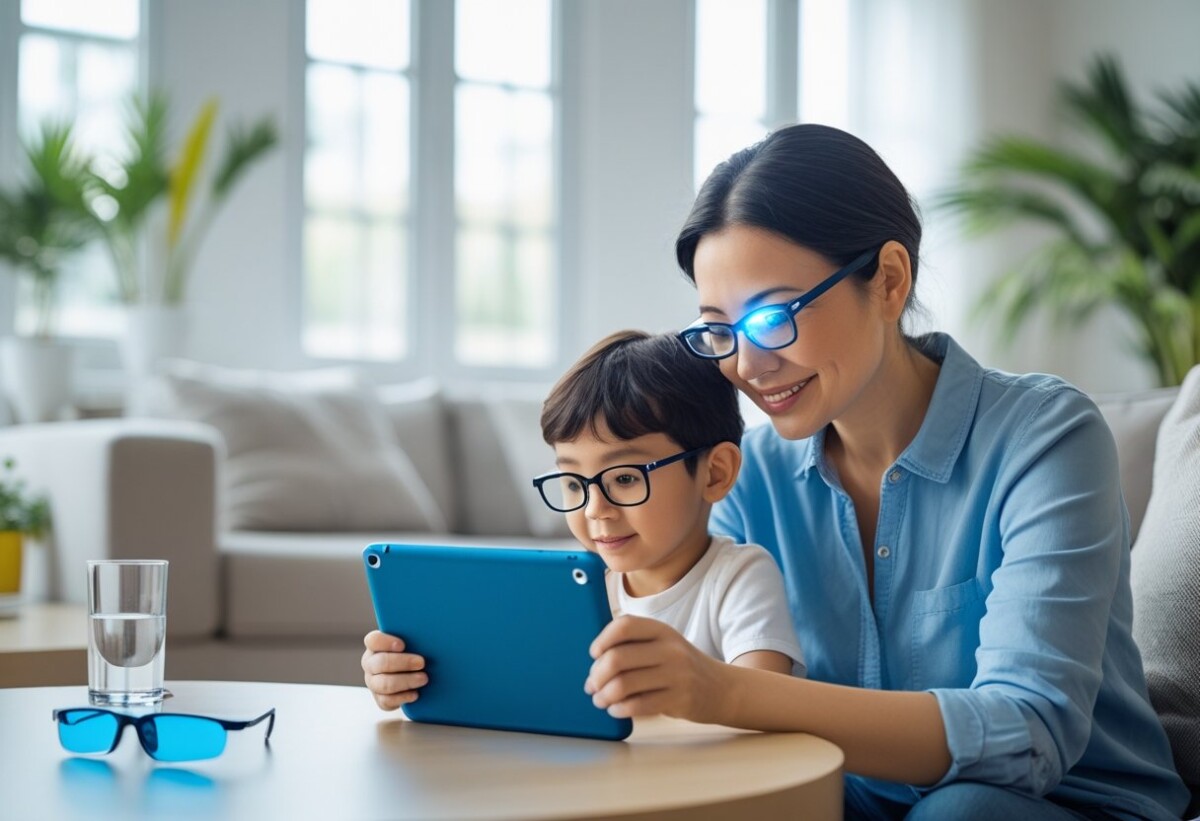
Wearable assistive devices have changed how our students interact with the world. Devices like smart glasses and electronic magnifiers help students with low vision read printed materials, view classroom boards, and recognize faces.
Many of these devices use cameras and digital displays to enhance vision in real time. Students can adjust contrast, zoom, and other settings to match their needs. Some wearables have built-in text-to-speech, so printed text is read aloud almost instantly.
These devices support independent learning and increase engagement. For example, electronic magnifier glasses allow students to participate in group work and follow along with presentations. Wearable devices also help students navigate school buildings, boosting confidence and safety.
AI-Powered Tools
Artificial intelligence is at the forefront of many assistive technology solutions for visually impaired students. AI-powered apps and devices use image and object recognition, text-to-speech, and even real-time language translation.
These tools can describe surroundings, identify objects, and convert handwritten notes into spoken words. For example, an app on a tablet can read assignments aloud, while portable devices can scan and describe new environments.
AI-driven software adapts to user preferences, personalizing the experience for each student. This level of customization enables students with disabilities to better understand class materials and keep pace with their peers. With constant updates, AI-powered technology continues to evolve and address new classroom challenges.
Tactile Graphics and 3D Printing for Learning
Tactile graphics and 3D printing have become essential resources for making visual information accessible to students who are blind or have low vision. Raised-line drawings, tactile maps, and models help students explore concepts in math, science, and geography.
3D printers now create detailed tactile models of cells, buildings, and other objects. These hands-on tools support learning through touch, helping students understand ideas that would otherwise be visual. Braille labeling can be added to these models for further accessibility.
We see tactile resources used alongside traditional tools, offering multisensory ways to learn. This combination benefits students at all grade levels and supports inclusion in mainstream classrooms.
Frequently Asked Questions
There are many technology solutions that address the needs of low vision students. Our answers here focus on specific devices, classroom strategies, and ways technology helps students take part in learning.
What are effective assistive technologies for low vision students in education?
Effective assistive technologies for our students include screen readers, screen magnifiers, and refreshable Braille displays.
These tools support different vision levels and learning styles. They help students access digital textbooks, handouts, and assignments.
How does assistive technology in the classroom improve learning for students with visual impairments?
Assistive technology offers adaptive access to written and visual content.
When we include these tools, students can complete tasks at the same time as their classmates, increasing participation. This allows them to work more independently and have better learning experiences.
Can you provide examples of tools that aid visually impaired students in accessing educational materials?
Some helpful tools include digital magnifiers, audiobooks, and voice output note-taking apps.
For example, a portable video magnifier allows a student to read worksheets or view the board. Audio description apps give details about images or diagrams.
What is the role of assistive devices in enhancing engagement among low vision students?
Assistive devices break down barriers by making content usable and interactive.
When students can see, hear, or touch their materials, they stay active in class discussions, group projects, and note-taking. This boosts confidence and a sense of belonging.
What types of technology are available to support blind or low vision students in academic settings?
We have access to mainstream and specialized solutions. Mainstream solutions include tablets and laptops with built-in accessibility features.
Specialized tools include electronic Braille readers, tactile graphics printers, and voice-controlled devices tailored to blind or low vision users.
How can assistive devices be integrated into lesson plans for students with visual impairments?
We can prepare accessible handouts, use digital content, and plan interactive activities that include assistive tech use.
Teaching students how to use their devices as part of lessons helps them keep up with learning goals. Collaboration between teachers, students, and families makes this process more effective.
👉Download this content as a PDF
Empower Your Classroom with Inclusive Strategies
Are you ready to transform your classroom for students with low vision?
Explore practical training, proven adaptations, and the latest assistive technologies to ensure every student thrives. Whether you’re an educator, school administrator, or support professional, our tailored Education & Training Services equip you with the tools and confidence to create a truly inclusive learning environment.
👉 Learn more and schedule your customized training today:
nelowvision.com/training-services/education-training-services/