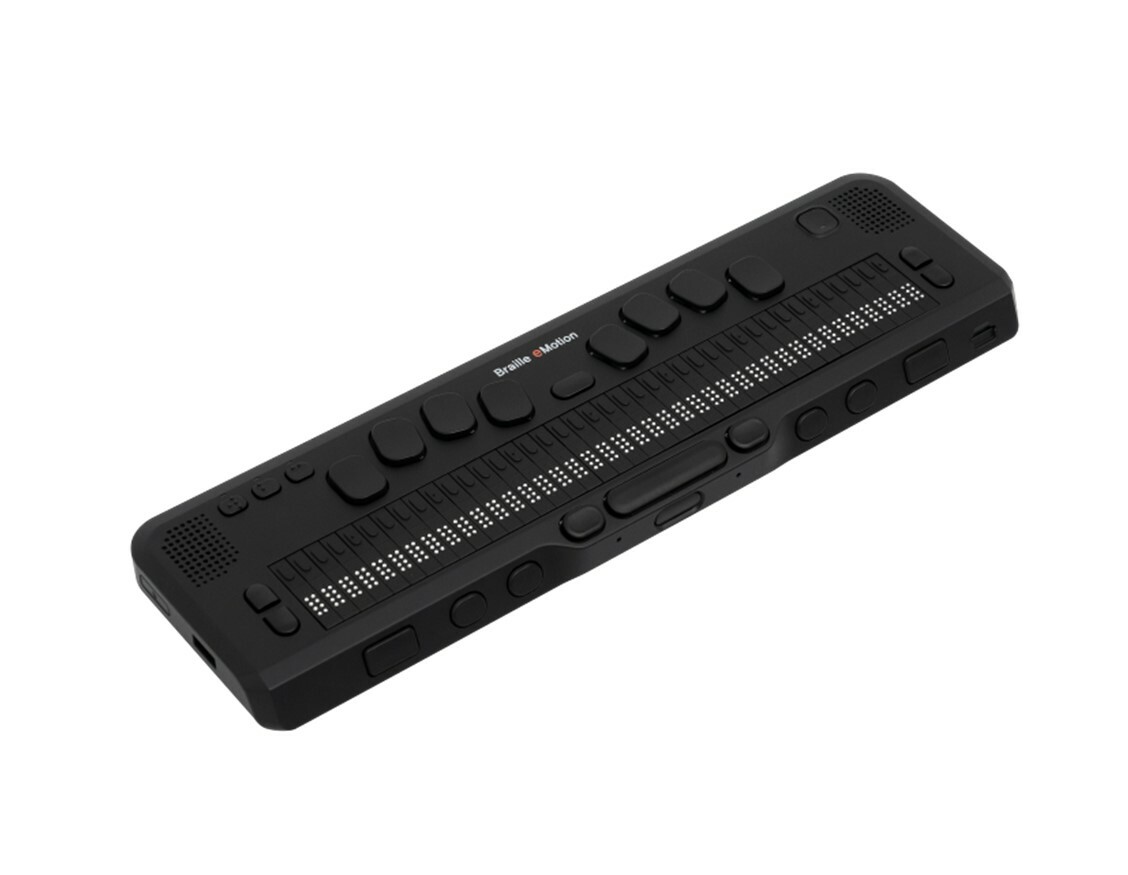
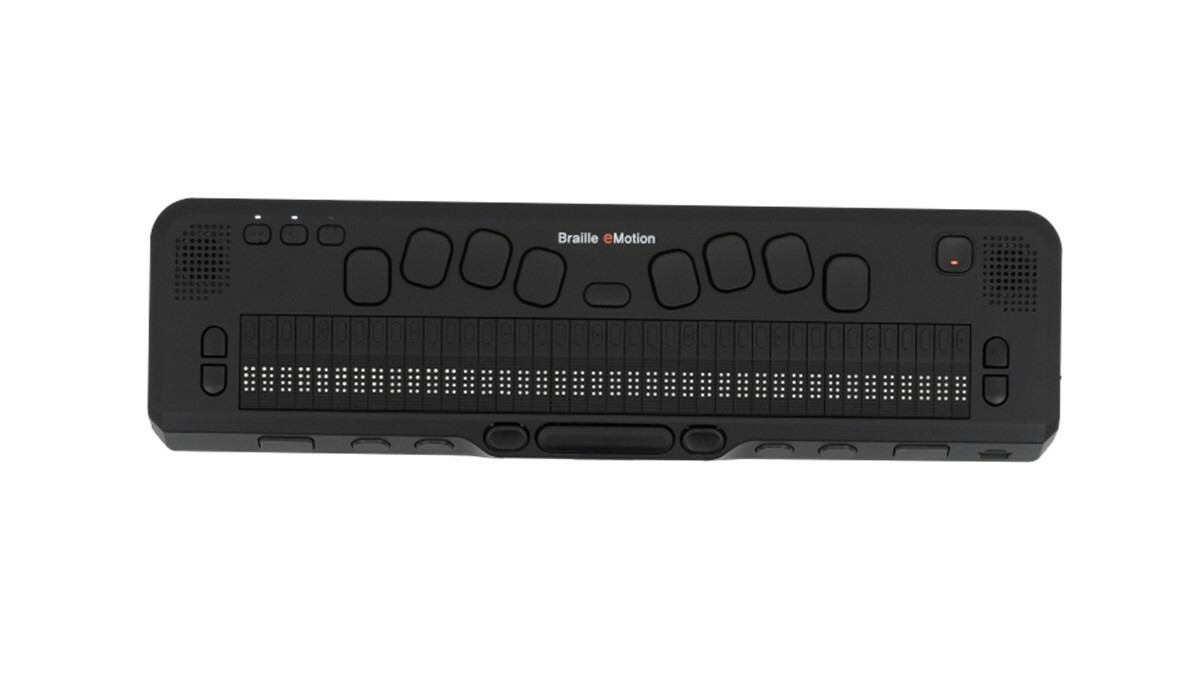
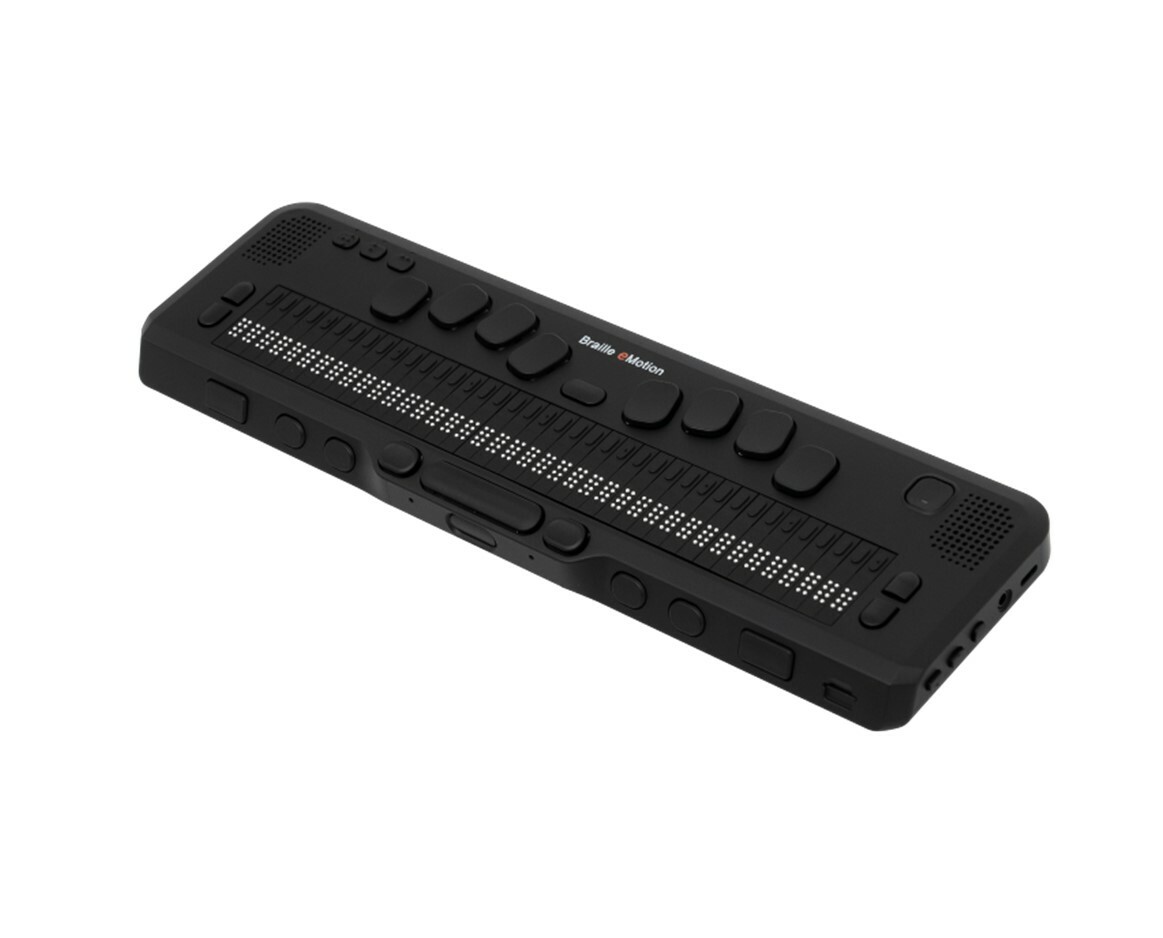
Braille eMotion Firmware Update: V1.5, April 2026
Keep your Braille eMotion performing at its best with the latest firmware update. Version 1.5 introduces powerful new features and meaningful improvements that enhance accessibility, productivity, and overall user experience.
Access the full Braille eMotion v1.5 release notes here: Release Note Download
What’s New in Version 1.5
- Braille Practice App now available—supporting skill development directly on the device
- Language Profiles for a more personalized and efficient user experience
- Direct Embossing capability from the Braille eMotion
- Improved HID compatibility with screen readers
- Updated JAWS key mappings to reflect current functionality (including upcoming Bluetooth support)
Before You Begin
- Battery must be above 40% (updates will not start below this level)
- Keep the device connected to AC power during the entire update
- Back up your settings using the Backup/Restore utility
- Back up important files stored on the device
- Do not reset or use the device during the update
Update Your Device
Option 1: Update Over the Internet
- Connect to Wi-Fi and plug into AC power
- Go to Utilities > Upgrade Braille eMotion Firmware
- Select Upgrade: Online
- Follow the prompts to begin the update
- Allow the download and installation to complete
Option 2: Update via USB or SD Card
- Download the firmware file from the official release link
- Copy the file to the root of a USB drive or SD card (do not extract the file)
- Connect the USB drive or SD card to the device
- Go to Utilities > Upgrade Braille eMotion Firmware
- Select Upgrade: Offline
- Follow the prompts and allow the update to complete
After the Update: Once the update is complete:
- Press Space + V from the Main Menu to confirm you are running Version 1.5
- Your device is now ready with the latest features and improvements
Braille eMotion Firmware Update, V1.3, December 2024
This upgrade adds the ability to reverse the function of the Cursor keys when scrolling and includes several fixes for reported issues. Please find the complete list of fixes and improvements in the release note here.
General Instructions:
You can update the Braille eMotion either via an Internet connection or from external media containing the upgrade files. If you choose the “Online” method, be sure you have an active Internet connection before attempting the upgrade. When you update the Braille eMotion, settings are usually maintained. However, if there are changes to setting values in the firmware, all settings will be initialized. Therefore, it is recommended that you back up your settings using the backup/restore utility in the “Braille eMotion Settings” menu. Data in the flash disk is protected. However, we recommend you backup your files before updating the eMotion Firmware as unexpected problems can occur.
Please note:
- It is not possible to upgrade the unit if your battery level is below 40%, even if you are connected to AC power.
- After the upgrade is completed, please press Backspace-Space-Enter-F to recover default apps, to ensure that the Braille eMotion is using the most current versions of the applications. Then, press Space-V from the Main Menu, to ensure you are running version 1.3.
- You cannot cancel the update once it has started. You must not reset the unit during an upgrade. You must keep the unit connected to AC power throughout the upgrade process. We recommend you do not touch the Braille eMotion while it is updating. It may take several minutes to update the Braille eMotion, possibly even longer depending on the speed of your Internet connection.
- The upgrade files are temporarily stored on the flash disk for installation. If you do not have enough memory available on the flash disk, the Braille eMotion is unable to update until you make room for the upgrade files.
You can access the “UpgradeFirmware” option via the “Utilities” menu, or launch it from anywhere on the unit using “F3-U”.
When you have chosen your upgrade method, and the upgrade files are downloaded or detected, the Braille eMotion will extract all of the necessary program files. Progress is announced every few seconds.
Once done, the Braille eMotion will reboot, and the system files will be upgraded. During this process, there is no speech, but the progress will be shown in Braille as a percentage.
When the system files have been upgraded, the software will load and boot, and the application files will be upgraded. Progress is spoken and displayed during this process.
Finally, the system reboots again. If there are no new or changed setting values in the firmware, the Main Menu loads, and your settings are restored. If setting values have been changed, all Braille eMotion settings are initialized, and the system boots and runs the Quick Guide before the Main Menu appears.
Upgrading the Braille eMotion Firmware Using the Internet
- To upgrade the Braille eMotion Firmware via the Internet, follow these steps:
- Make sure you are connected to the Internet and plugged into AC power. Press “Enter” on “Upgrade Braille eMotion Firmware” in the “Utilities” menu.
- Press “Enter” on”Upgrade: Online”. The Braille eMotion connects to the HIMS server, and your current software version is compared to the HIMS server version. You are prompted to continue with the upgrade.
- The Braille eMotion begins downloading the upgrade files. The upgrade is very large. Thus, depending on the speed of your Internet connection, it may take a long time to download.
- After downloading the upgrade files, Braille eMotion automatically starts the upgrade process. Please remember you must not touch the Braille eMotion until the upgrade is complete, as pressing keys, resetting, or unplugging the unit can interrupt the upgrade process, thus resulting in an incomplete installation. When the upgrade is complete, you are returned to the “program” menu, and the unit announces, “My eMotion”.
- After the upgrade is complete, check the software version by pressing “Space-V” while in the”program” menu.
Upgrading the Braille eMotion Firmware from USB or SD
To upgrade the Braille eMotion Firmware from a disk, follow these steps:
- Download the upgrade file from this link: https://b340c.s3.ap-northeast-2.amazonaws.com/release/en/B340C_system_65319.bin (-> selvasblv.us18.list-manage.com) Note: The file is a .bin file, however, some versions of Windows may rename it as a .zip file. Do not extract this file. Simply rename the extension back to .bin. Copy the file to the root of an external storage device such as an SD card or USB thumb drive.
- Connect the SD card or USB drive to the Braille eMotion, and be sure the Braille eMotion is connected to AC power. Then, press “Enter” on “Upgrade Braille eMotion Firmware” from the “Utilities” menu.
- “Upgrade: Online” is displayed. Press “Space-4” to go to the “Upgrade: Offline” option. Press “Enter”
- The Braille eMotion starts the upgrade process. Please remember you must not touch the Braille eMotion until the upgrade is complete. When the upgrade is complete, you are returned to the “program” menu, and “My eMotion” is displayed.
- When the upgrade is complete, check the software version by pressing “Space-V” while in the “program” menu.