How to Use the Magnifier in Windows 11 PC
The Magnifier, an accessibility tool in your Windows 11 PC helps you zoom into your screen and makes things easier to see. This is a very useful tool specifically for people with low vision or people who are into editing images or often have to deal with small font texts. It is a very simple and handy tool.
Quick Answer: The Windows 11 Magnifier is a built-in accessibility tool that enlarges part or all of your screen for people with low vision. Open it instantly with Windows key + Plus (+), or navigate to Settings > Accessibility > Magnifier. Choose from three views: Full screen, Lens, or Docked. Use Windows + Plus to zoom in and Windows + Minus to zoom out. The Magnifier also supports color inversion, smooth text rendering, and touchscreen gestures.
Quick Answer: The Windows 11 Magnifier is a built-in accessibility tool that enlarges part or all of your screen for people with low vision. Open it instantly with Windows key + Plus (+), or navigate to Settings > Accessibility > Magnifier. Choose from three views: Full screen, Lens, or Docked. Use Windows + Plus to zoom in and Windows + Minus to zoom out. The Magnifier also supports color inversion, smooth text rendering, and touchscreen gestures.
To open Windows 11 Magnifier, press Windows key + Plus sign (+), or go to Settings > Accessibility > Magnifier and turn it on.The built-in Magnifier enlarges part or all of your screen, making text and images easier to see. Use Windows + Plus to zoom in and Windows + Minus to zoom out. You can choose from three views:
Full screen (entire display magnified), Lens (magnifying glass follows mouse), or Docked (magnified area in fixed position). Access all Magnifier settings through Settings > Accessibility > Magnifier to customize zoom increments, enable color inversion, and set up text-to-speech reading.
Let’s learn how you can easily launch the Magnifier tool on your Windows 11 PC and use it. We have already talked about some Magnifier Tips and Tricks – In this post, we will specifically talk about how to Use the Magnifier in Windows 11.
- How to launch the magnifier tool on Windows 11 PC
- Change magnifier zoom level
- Change magnifier view
- Smooth edges of images and text
- Invert colors
- Text size
- Use magnifier for touchscreen devices
1) How to launch the Magnifier on Windows 11
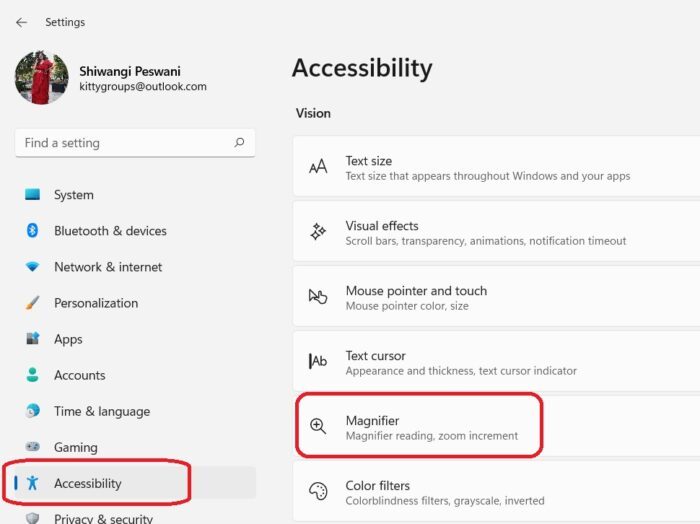
You can launch the tool either by using the shortcut “Win and +” together or you can go through the Settings. To open Settings, press Win+I on your keyboard and go to Accessibility and then select Magnifier from the right panel. Here you can see the complete settings of this tool.

Turn the tool On from here and you will see it on your screen where you can zoom in, zoom out, start the Narrator and go to the Settings.

For people with low vision, it will be a good idea to open the magnifier automatically with sign-in. This is where you can change it. Just check the boxes shown in the screenshot.
If you are using a keyboard and a Narrator :
- Press Windows logo key + Ctrl + M and press the Tab key until you hear: “Magnifier, toggle switch.
- Press the Tab key once and you will hear “Show all settings.”
- Press Enter, and the Tab again key and the narrator says, “Start Magnifier after sign-in” or “Start Magnifier before sign in,” followed by “unchecked” or “checked.”
- Press Spacebar to turn on or off the option.
2) Change Magnifier Zoom Level
You can also see the option of changing the ‘Zoom Level’ here. You can change the percentage representing the zoom amount. You can increase or decrease the zoom level using + and the – button.
If you are using your keyboard and a Narrator-
- Open the Magnifier settings using the Windows key + Ctrl + M and press the Tab key until you hear the narrator Zoom out button or Zoom in button.
- Now press Spacebar to adjust the zoom level value. The Narrator will announce the changing values.
The option of Zoom Increment lets you decide how much the screen with zoom in or out when you press the + or the – keys. The zoom level by default is set to 100% but you can change it as per your own preferences. You can change it from the dropdown menu.
If you are using a keyboard and a Narrator :
- Open the Magnifier settings using the Windows key + Ctrl + M and press the Tab key until you hear “Zoom increments,” followed by the current value.
- Open the menu by pressing Alt+Down and use the Up and Down arrow keys to increase or decrease the zoom value. Press Enter to the value to want to select.
3) Change Magnifier View
You can change the Magnifier views using the following shortcuts or you can simply use the dropdown menu.
- Ctrl + Alt + F- Full screen view
- Ctrl + Alt + D- Docked view
- Ctrl + Alt + L- Lens view
After changing these, you can see what works the best for you and settle for it.
To cycle between the views, press Ctrl + Alt + M. You can use this to quickly compare the views and see which one works best for you in each situation.
4) Smooth edges of images and text
You need to check this manually here. Turn the option On and see if that works for you. You can come and turn it off again.
If you are using a keyboard and a Narrator :
Press the Windows logo key + Ctrl + M and keep pressing the Tab key until you hear the narrator say, “Smooth edges of images and text,” and then “Toggle switch, on” or “Toggle switch, off.”
Then use the Spacebar to turn the option on or off.
5) Invert colors
If you are someone who has to be on the computer for most of the day, inverting colors may make the text more readable and help reduce some eye strain. Inverting colors means turning all blacks into white and all whites into blacks.
You can either turn it On or Off using the button here or you can use the shortcut Ctrl+Alt+I while the Magnifier is turned on.
You can revert back to the normal colors by pressing Ctrl + Alt + I again.
6) Text Size
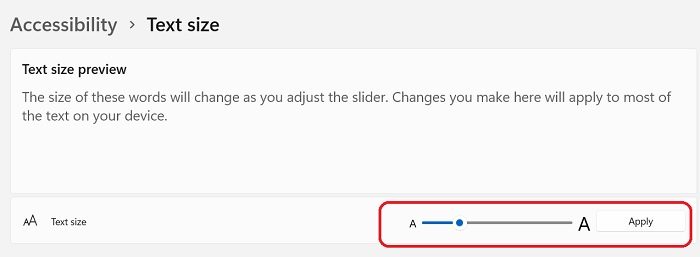
It doesn’t really have anything to do with the magnifier but it comes under the related settings and as the name says, you can change the text size here. Just take the scroller to the text size you want and click on Apply. This will change the size of most of the text that appears on your machine.
7) Use Magnifier with a touchscreen
If you are using a touchscreen device, here are a few tips for you.
- You can use the (+) and (-) on your screen to zoom in and zoom out.
- Drag along the borders of the screen to move around the screen.
- Tap with a finger on the opposite borders of your screen to zoom in instantly on your current screen.
- To close the Magnifier, zoom out and tap close.
You can also keep the Magnifier mouse cursor in the center of the screen.
So basically this was a short and simple guide about the Magnifier tool in your Windows 11 PC. Do let us know via comments if you still have any doubts about this tool.
This article was published and copyrighted by The Windows Club and authored by ShiwangiPeswani@TWC. To read the original article, you can visit this link – https://www.thewindowsclub.com/how-to-use-the-magnifier-in-windows-11
How Can We Help You Or A Loved One
Free eBook: If you or a loved one has been diagnosed with Macular Degeneration, we have created this 12-section eBook “Now What? – a free resource to help you or loved one who has been diagnosed with Macular Degeneration. <Click here to download a PDF of the entire report.>
Technology: We offer latest and most advanced low vision and blindness technology supported by world-class personal service. We have nearly 100% of all major electronic low vision, blindness, and software products. Our complimentary, no-obligation demonstration on any of our products will make sure our clients are getting the right product for their specific eye condition.
Training: Technology rehabilitation training services for people with low vision and blindness. We go to our clients – home, school, or business – training where they need it – from caring assistive technology professionals.
Smart Home: Our Smart Home services can help design a solution to help our clients or their loved ones remain independent by using the many features of a Smart Home. <Click here to learn more.>
Bring Hope: We Bring Hope to people who are blind or visually impaired through the many products and services we offer. <Click here to learn more about our Bring Hope services.>
Convenience: Our two(2) state-of-the-art technology showrooms are a wonderful resource, showcasing a variety of leading electronic low vision magnifiers and blindness products. Our clients schedule an appointment with one of our Technology Specialist who can help you find the right technology, training, and care solution. If our client cannot come to us, our staff can even drive out and bring our Vision Store to them, for a no-obligation product demonstration.
To learn more about how we can help you or a loved one, contact a Technology Specialist at New England Low Vision and Blindness today. You can call our toll-free number 888-211-6933 or email us at info@nelowvision.com and we will be happy to help.
Frequently Asked Questions About Windows 11 Magnifier
How do I open the Magnifier in Windows 11?
Press the Windows key + Plus sign (+) to instantly open the Magnifier. Alternatively, go to Settings > Accessibility > Magnifier and toggle it on. You can also use Windows key + Ctrl + M to open Magnifier settings directly.
What are the three Magnifier views in Windows 11?
Windows 11 Magnifier offers three views: Full screen (Ctrl+Alt+F) which magnifies the entire display, Docked (Ctrl+Alt+D) which shows a magnified area in a fixed position at the top of the screen, and Lens (Ctrl+Alt+L) which creates a movable magnifying glass that follows your mouse cursor.
How do I change the zoom level in Windows 11 Magnifier?
Use Windows key + Plus (+) to zoom in and Windows key + Minus (-) to zoom out. You can also adjust the zoom increment percentage in Settings > Accessibility > Magnifier to control how much each zoom step changes the magnification level.
Can I invert colors with Windows 11 Magnifier?
Yes. Press Ctrl+Alt+I while the Magnifier is active to invert screen colors, turning blacks into whites and whites into blacks. This can reduce eye strain during extended computer use. Press Ctrl+Alt+I again to revert to normal colors.
How do I use Windows 11 Magnifier on a touchscreen?
On touchscreen devices, tap the plus (+) and minus (-) buttons on screen to zoom in and out. Drag along the screen borders to move around the magnified view. Tap with a finger on opposite borders to zoom in instantly. To close, zoom out completely and tap the close button.
How do I make Windows 11 Magnifier start automatically?
Go to Settings > Accessibility > Magnifier and check the boxes for “Start Magnifier after sign-in” and “Start Magnifier before sign-in for everyone.” This ensures the Magnifier opens automatically every time you log into your Windows 11 PC.