Got a Glitch? A Troubleshooting Guide for Common Low Vision Aid Issues
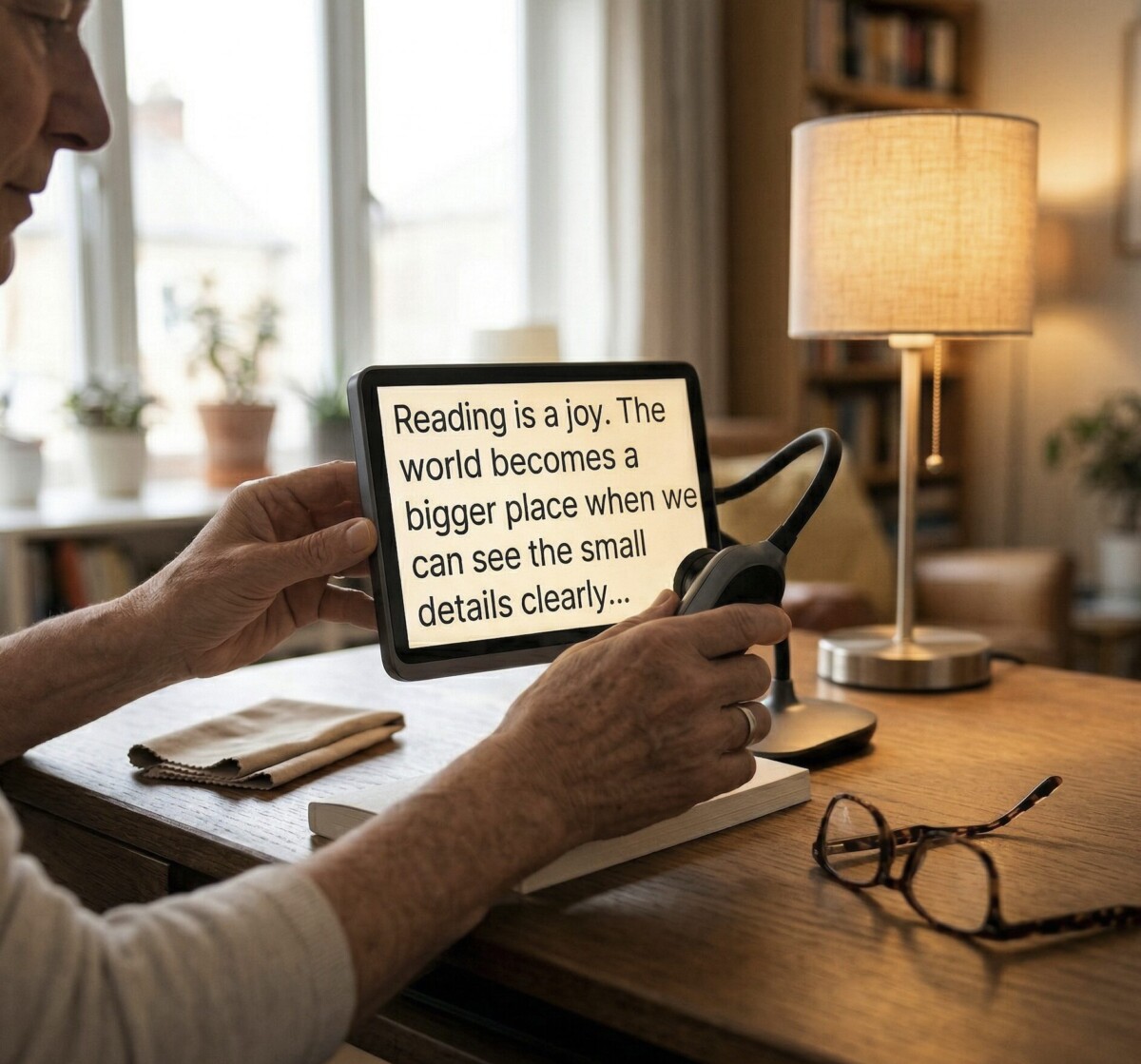
Low Vision Aid Troubleshooting: Common Problems and Easy Fixes
Your magnifier worked fine yesterday. This morning, the image is blurry no matter what you try. Or maybe your video magnifier turns on, but nothing appears on the screen.
When a low vision aid stops working, it can feel like losing a lifeline. These tools help you read, connect, and live independently. When they glitch, life gets harder—fast.
The good news? Most low vision aid troubleshooting issues have simple solutions. This guide walks you through the most common problems and how to fix them at home.
What Counts as a Low Vision Aid?
Low vision aids include any tool that helps you make the most of your remaining vision. That includes handheld and stand magnifiers, video magnifiers and CCTVs, screen readers and magnification software, smart glasses and wearable devices, and adjustable lighting and filter lenses. Each type has its own quirks—and its own common problems.
Problem: Blurry or Unclear Images
A blurry image is the most common complaint. Before anything else, try these steps.
Clean the lens. Fingerprints and dust cause more blurriness than any other issue. Use a soft, dry microfiber cloth—nothing wet.
Check your focal distance. Optical magnifiers work best at a specific distance. Slowly move the lens closer or farther from the page until the image sharpens.
Adjust the focus setting. Most CCTVs and video magnifiers have a manual or auto-focus control. Try resetting it to the default.
Improve your lighting. Poor ambient light makes everything harder to see. Aim a task lamp directly at what you’re reading—not at the screen itself.
If the image is still blurry after these steps, the lens may be scratched or the camera sensor may need professional service.
Problem: Your Device Won’t Turn On
Before calling for support, work through this checklist.
Confirm the power source. Is the cord fully seated in both the device and the outlet? Is the battery charged?
Try a different outlet. Power strips can fail silently and trip internal breakers.
Do a hard reset. Hold the power button for 10 to 15 seconds, release it, then wait 30 seconds before trying again.
Check for overheating. If the device feels warm, let it rest for 15 to 20 minutes before trying to power it on.
These four steps resolve the vast majority of “won’t turn on” issues.
Problem: Screen Reader or Magnification Software Isn’t Responding
Software problems can feel harder to fix, but most have straightforward solutions.
Restart the device first. A simple reboot solves more software issues than you might expect.
Check for pending updates. An incomplete system update can cause accessibility software to freeze or behave unpredictably. Let any pending updates finish, then restart.
Verify your license or subscription. Some screen reader subscriptions lapse without a clear warning. Log in to your account to confirm it’s active.
Reinstall the software. If the problem persists, uninstall the program entirely and reinstall it fresh. Your settings are usually saved in the cloud or can be re-entered quickly.
If you’re not comfortable troubleshooting software on your own, our remote training services team can guide you through each step in real time.
Problem: Colors Look Wrong
If your CCTV or video magnifier is displaying washed-out, yellowish, or overly blue colors, check the color mode first. Most CCTVs offer several display modes—natural color, high contrast black-and-white, and others. You may have accidentally switched modes. Try adjusting brightness and contrast together, as these two settings interact. If colors are consistently off on a device that’s less than a year old, it may need calibration or warranty service.
When to Stop Troubleshooting and Get Help
DIY fixes go a long way, but these situations need professional attention: physical damage including cracked screens, bent lenses, or frayed cords; error messages you don’t recognize; problems that return after you’ve tried all the fixes above; and any issue with a device you depend on for medication management or personal safety.
Don’t wait if your device is essential to your independence. Help is available, and getting it early can prevent a small problem from becoming a larger one.
Your Next Step
If you’ve tried these steps and still need help, our remote training services team is ready. We work with you in real time—by phone, video, or remote access—to diagnose and resolve the issue.
You can also explore our low vision iOS app guide if your problems are specific to apps on your phone or tablet.
For ongoing support with your low vision aids, contact New England Low Vision and Blindness. We’re here to help you stay independent.
Frequently Asked Questions
Can I fix a scratched magnifier lens at home?
Most scratched lenses need professional replacement. DIY scratch-repair kits rarely work on precision optics and can make the problem worse.
My screen reader stopped working after a software update. What should I do?
Go to your device’s accessibility settings and toggle the screen reader off and back on. If that doesn’t help, check the software developer’s website for a compatibility patch or update related to your device’s recent changes.
How long should a video magnifier last before needing service?
Most quality CCTVs last 5 to 10 years with regular care. If yours is within that range and is experiencing problems, a repair is usually worth pursuing before replacing the entire unit.
Take the Next Step
If your low vision aid still isn’t working after trying these fixes, you don’t have to figure it out alone. At New England Low Vision and Blindness, we provide personalized assistive technology support to quickly diagnose issues and restore your device’s performance.
- Browse low vision aids and solutions: https://nelowvision.com/product-category/low-vision-products/
- Learn about our assistive technology training and troubleshooting services: https://nelowvision.com/training/
- Schedule a consultation or get help now: https://nelowvision.com/contact/
Our team works with you in real time—by phone or video—to resolve problems and help you stay confident and independent.