Don’t Panic: Solving Common Problems with Your Blindness Aid
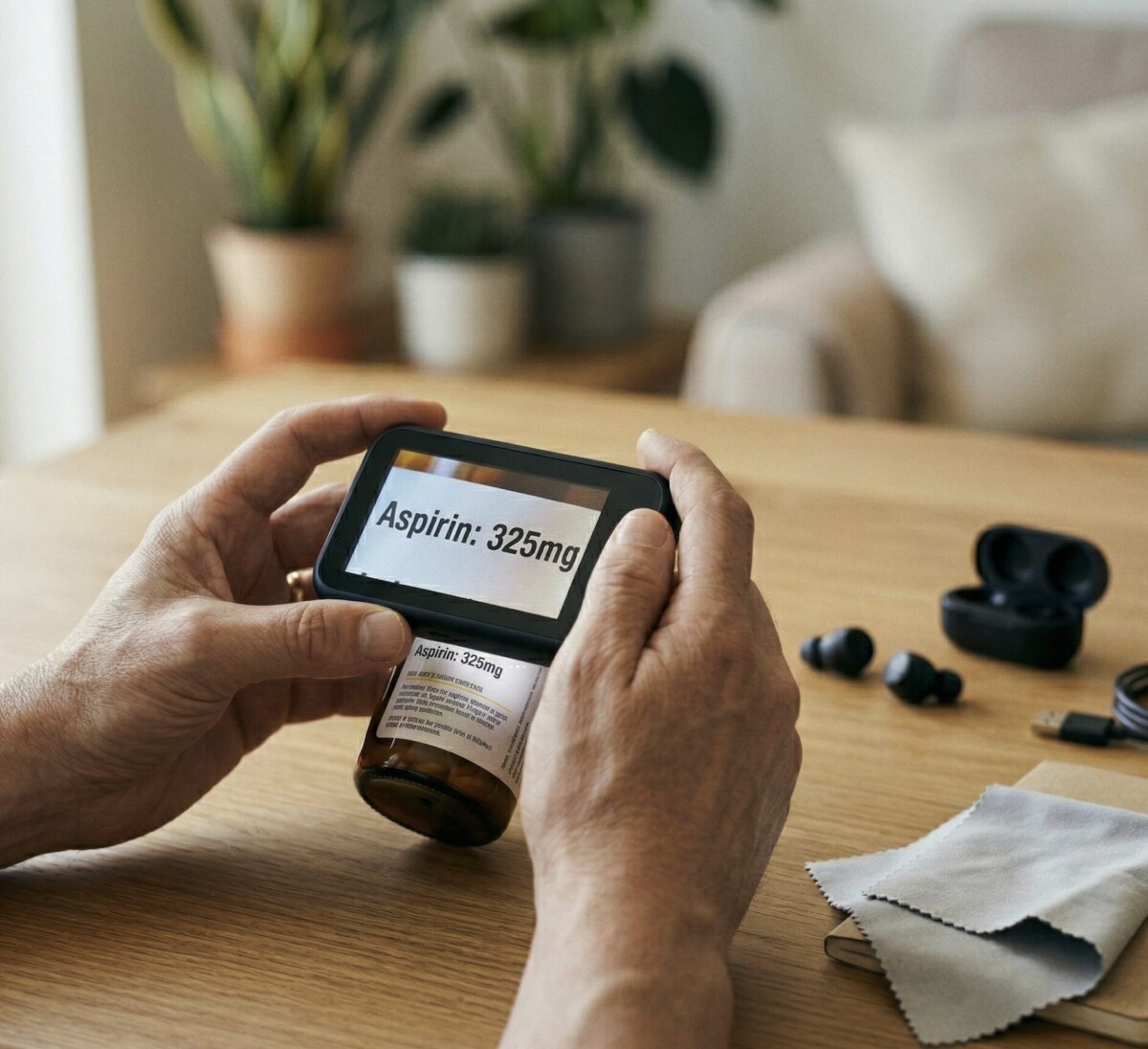
It happens at the worst possible moment. You’re about to read a prescription label, answer an important email, or follow a recipe—and your blindness aid stops cooperating.
Before the frustration takes over, take a breath. Most common blindness aid troubleshooting problems have quick, manageable solutions. This guide will help you work through them step by step.
Understanding the Type of Problem
Blindness aids cover a wide range of devices, and the first step in troubleshooting is understanding what kind of device you have and what type of problem you’re experiencing.
Electronic aids—screen readers, talking devices, electronic magnifiers, and smart glasses—tend to have power, connectivity, or software issues. Optical aids—handheld magnifiers, stand magnifiers, and bioptic lenses—most commonly have issues with clarity, focal distance, or damage. Knowing which category applies helps you pick the right solution quickly.
Fixing Electronic Blindness Aid Problems
Most electronic aid problems fall into one of three categories.
Power issues: The device won’t turn on, turns off unexpectedly, or won’t hold a charge. Start by checking the power connection, trying a different outlet, and fully recharging the battery before using the device.
Software or app issues: Your screen reader stops speaking, your talking device gives incorrect responses, or your magnification software freezes. Restart the device first. If the problem continues, check for pending software updates and install them. A software update is the most common cause of sudden changes in behavior.
Connectivity issues: Bluetooth devices aren’t pairing, apps won’t load, or your device can’t connect to Wi-Fi. Toggle Bluetooth or Wi-Fi off and back on. If that doesn’t help, forget the connection and re-pair the device from scratch.
Fixing Optical Blindness Aid Problems
Optical aids are simpler mechanically, but they have their own challenges.
Blurry image: Clean the lens with a dry microfiber cloth. Adjust your focal distance—move the magnifier closer or farther until the image sharpens. Check your lighting; a direct task lamp makes a significant difference.
Distorted or curved image: This can happen with high-powered magnifiers when you’re too far from the optimal focal point. Bring the magnifier closer to the reading surface gradually.
Scratched or cloudy lens: Minor scratches can sometimes be polished with a lens cleaning kit. Deep scratches usually require professional replacement.
When Simple Fixes Don’t Work
Some problems go beyond what you can fix at home: error codes or messages you don’t recognize, damage from a drop or spill, a talking device that gives incorrect or garbled information repeatedly, and any issue affecting medication management or personal safety.
In these cases, reach out to your provider for support. Our remote training services team can diagnose most issues remotely, often in a single session.
You can also explore our guide on the best iOS apps for visually impaired users if the issue is specific to apps on your phone.
When to Replace Instead of Repair
Not every broken device is worth repairing. If the device is more than 7 to 10 years old, newer models may offer better functionality at a similar cost to repair. If the repair cost is more than 50% of a new device’s price, replacement is usually the smarter choice. If you’ve had the same issue repaired more than twice, it’s time to consider a replacement.
Your low vision specialist can help you evaluate options. Contact New England Low Vision and Blindness for a consultation.
Frequently Asked Questions
My talking device is giving wrong responses. Is it broken?
Not necessarily. Talking devices sometimes have voice recognition issues in noisy environments or after a software update. Try updating the software and retraining the voice recognition feature if your device supports it.
How do I know if my screen reader is the problem or if the app itself is inaccessible?
Test the screen reader with a different app you know works well. If the screen reader works there but not in the problem app, the app itself likely has accessibility issues—not your device.
Is it safe to clean my electronic magnifier screen with a damp cloth?
Use only a slightly damp microfiber cloth, never dripping wet. Always turn the device off before cleaning and allow it to dry completely before turning it back on.