Choosing the Right Assistive Technology for Your Students: Key Considerations for Effective Selection
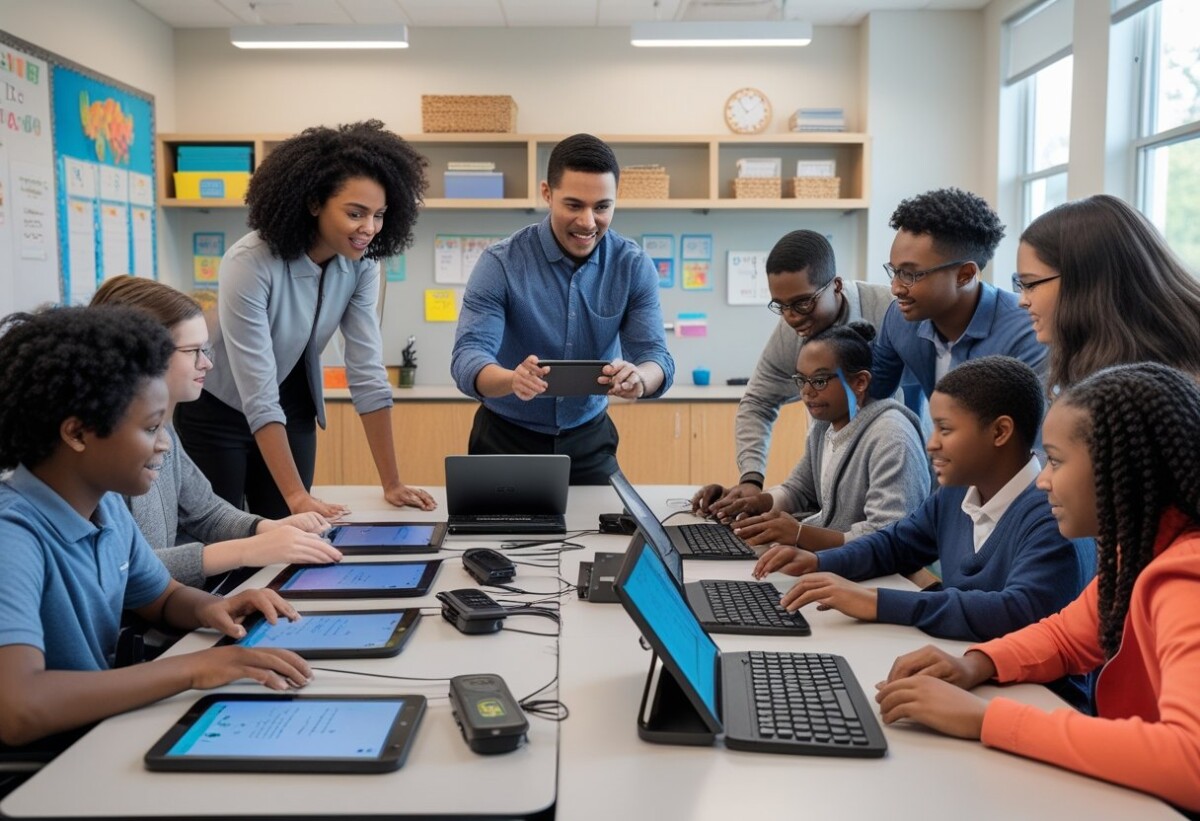
Empowering Teachers of the Visually Impaired: Choosing the Right Assistive Technology for Your Students
Selecting the most effective assistive technology for your students can unlock new ways for them to learn, participate, and thrive in the classroom. Not every tool fits every student, so it’s important to match each student’s unique needs with the right technology—whether it’s a high-tech device like a screen reader or a simple magnifier.
At New England Low Vision and Blindness, we believe that every student deserves the chance to succeed. We use our experience and deep knowledge to help teachers like you make those crucial choices that lead to a more accessible and welcoming classroom for all.
Understanding Assistive Technology
Assistive technology is essential for opening up learning opportunities for students with disabilities and diverse learning needs. To make the best choices, we look at what assistive technology is, how it benefits learners in special education, and who supports its use in the classroom.
Definition and Categories of Assistive Technology
Assistive technology (AT) includes any tool, device, or resource that helps people with disabilities complete tasks that might otherwise be hard or impossible. In schools, we use AT to help students with tasks related to vision, mobility, communication, reading, and writing.
AT devices range from simple, low-tech tools to advanced, leading-edge solutions. Some examples include:
- Low-tech: Enlarged print books, tactile graphics, braille tools, and bold-lined paper
- Mid-tech: Electronic magnifiers, talking calculators, large font keyboards
- High-tech: Screen readers, refreshable braille displays, and speech recognition software
We match students’ needs to the right category through assessments and ongoing observation.
Benefits for Special Education and Diverse Learners
AT helps students with visual impairments or learning disabilities access printed materials, participate in lessons, and complete assignments more independently. For example, a student who is blind may use a screen reader to read digital textbooks, while another learner may benefit from audio note-taking tools.
The goal of assistive technology is to provide equal access and participation. Properly chosen tools can:
- Increase independence in schoolwork
- Boost confidence and engagement in the classroom
- Support personalized learning by addressing each student’s unique strengths and challenges
- Allow us to meet legal requirements for accommodation and inclusion
With the right AT tools, students can keep pace with their peers and make meaningful progress.
Key Specialists and Their Roles
Selecting and using assistive technology requires teamwork. Several specialists work together to assess, recommend, and teach students how to use technology:
- Teacher of the Visually Impaired (TVI): Guides AT selection, instruction, and troubleshooting for visually impaired students
- Occupational Therapist (OT): Focuses on fine motor needs, access tools, and adaptations for learning materials
- Physical Therapist (PT): Advises on seating, posture, and equipment handling for optimal device use
- Assistive Technology Specialist: Provides in-depth evaluation, training, and technical support
- Special Education Teacher: Coordinates AT use within classroom strategies and monitors student progress
- Adapted Physical Education (APE) Specialist: Suggests AT for physical activities as needed
This collaborative team ensures each student has the right support to succeed with assistive technology in daily school life.
Identifying Student Needs
Choosing the right assistive technology starts with a clear understanding of each student’s challenges and strengths. We must consider the student’s specific disability, educational goals, and the support systems available to determine the best tools for their success.
Assessing Learning Disabilities and Challenges
We begin by looking at the specific learning disability or challenge a student is facing. For example, students with visual impairments, dyslexia, or ADHD require tailored approaches.
We observe how students interact with their environment and academic tasks. For those with dyslexia, limitations in reading may mean exploring text-to-speech technology or audiobooks. Students with ADHD may need tools that help with organization, such as visual planners or reminder apps.
Key steps in assessment:
- Gather information from observations and student feedback
- Review academic records and performance
- Use checklists and formal evaluations when needed
- Consider the student’s preferences for using technology
The goal is to find assistive technology that matches the student’s needs and builds on their strengths.
The Role of Individualized Education Programs
An Individualized Education Program (IEP) is essential for guiding technology selection. Each IEP outlines a student’s goals, services, and accommodations.
We work as part of the IEP team to ensure assistive technology is addressed. For students with visual impairments and learning disabilities, the IEP may recommend specific tools like screen readers, electronic magnifiers, or Braille displays.
Our process includes:
- Identifying learning barriers
- Involving families in decision-making
- Setting clear, measurable outcomes for technology use
We regularly review and update the IEP, ensuring students have access to the latest, most effective leading-edge tools.
Collaborating with Related Service Providers
Collaboration ensures that we identify all areas where assistive technology can help. We work closely with speech-language pathologists, occupational therapists, and other professionals.
For example, a speech therapist may recommend communication devices for students struggling with verbal expression. Occupational therapists might suggest adapted keyboards for better access.
We also encourage regular meetings to discuss student progress. This team approach helps us share strategies, test different solutions, and make data-driven decisions. By working together, we find the most practical and effective technology for each student we serve.
Types of Assistive Technology Tools
Selecting the right assistive technology tools for our students means understanding how each tool supports learning, engagement, and independence. There are helpful options ranging from basic classroom supports to advanced digital devices, each designed to address specific needs.
Low-Tech Solutions for Access and Participation
Low-tech solutions can be simple but very important for building independence. These include pencil grips which make handwriting easier for students who have trouble holding or controlling a pencil. We often use graphic organizers to help students visually arrange their ideas when writing essays or stories.
Accessible Educational Materials (AEM), like large-print books or tactile graphics, give students with low vision the same access to information as their peers. Other options, such as high-contrast rulers or bold-lined paper, help students see text more clearly.
These tools are easy to use, cost-effective, and do not require batteries or software. Even small changes like these can make a big difference in daily classroom activities.
High-Tech Tools for Reading and Writing
High-tech assistive technology tools involve electronic devices and software that support reading, writing, and other academic tasks. Tools like screen readers convert on-screen text to speech, letting students with low vision or blindness listen to digital content. We also use text-to-speech programs and audio books so students can access and understand reading materials in a different way.
On-screen keyboards offer an alternative to traditional typing, helping students type using a visual keyboard on a touch screen. Word prediction software assists students who struggle with spelling or writing, reducing the number of keystrokes they need to enter a word or sentence.
These tools not only help with academic work but also improve confidence by giving students better access to classroom content.
Alternative Input and Output Devices
Sometimes students need a different way to interact with computers or other tech tools. Alternative input devices include items like adaptive keyboards, switch systems, and eye-tracking devices that allow students to control a computer without using a standard mouse or keyboard.
For communication or sound challenges, we can use an FM system to boost a teacher’s voice directly to a student’s hearing aids or receivers, making it easier for students to focus in noisy classrooms. Braille readers and tactile displays are also important as output devices, helping students who are blind access computers and printed materials through touch.
These alternatives support students who have complex needs, providing more ways to learn, participate, and succeed in school.
Assistive Technology for Reading and Communication
Reading and communication assistive technology gives students with visual impairments, dyslexia, or reading challenges more independence and access. These tools include text-to-speech software, screen readers, speech recognition systems, and other solutions that support learning for all abilities.
Text-to-Speech and TTS Solutions
Text-to-speech (TTS) software can read digital or printed text out loud, making materials more accessible for those who have difficulty seeing, decoding words, or focusing on print. Students with dyslexia or low vision often benefit from TTS programs because these tools convert written text into spoken language.
Key TTS features include adjustable voice speed, multiple voices, and language choices. Common TTS solutions work across computers, tablets, and smartphones. For example, apps such as Kurzweil 3000 and NaturalReader allow users to listen to textbooks, websites, and classroom materials in real time.
We recommend checking if TTS software provides synchronized highlighting so students can follow along as the text is read. This helps develop word recognition and comprehension. Some programs also let students save audio files of reading assignments for later review.
Screen Readers and Accessibility
Screen readers are advanced tools designed for users who are blind or have severe vision loss. These programs convert all the text displayed on a screen—menus, buttons, emails, and documents—into spoken words or braille output.
Popular screen readers include JAWS and NVDA. These tools support a wide range of web browsers, applications, and devices. Screen readers work best when digital content is formatted for accessibility, such as with clear headings and alt-text for images.
Accessible classroom materials ensure students can read at their own pace. We offer training in using screen readers efficiently and adjusting their settings for different needs. Teachers of the visually impaired can help by encouraging the use of accessible file formats like tagged PDFs.
Speech Recognition and Voice-to-Text Technology
Speech recognition and voice-to-text technologies allow students to speak rather than type or write. These solutions recognize spoken language and turn it into editable text on the screen, providing vital support to individuals with visual impairments or motor difficulties.
Dragon NaturallySpeaking and built-in tools like Microsoft Dictate are widely used in schools. These programs help students compose essays, emails, and assignments by voice, making writing more efficient and less frustrating.
Some systems offer custom vocabulary and voice training, helping them better understand the user’s speech, including accents or speech differences. By using voice commands, students can also control computer functions, open programs, or navigate the web hands-free.
Choosing the Right Software
Selecting the best assistive technology depends on the specific needs of each student. To make the right choice, consider the student’s reading level, type of vision loss, and comfort with technology. It’s important to match features to individual goals, such as reading textbooks, browsing the internet, or writing assignments.
We suggest evaluating tools through hands-on trials and getting feedback from both students and teachers. A chart comparing features can help with decision making:
| Feature | TTS | Screen Readers | Voice-to-Text |
| Reads text aloud | Yes | Yes | No |
| Outputs braille | No | Yes | No |
| Accepts voice input | No | No | Yes |
| Supports web browsing | Limited | Yes | Yes (voice nav.) |
Ongoing training and support should be part of any plan to ensure lasting benefits from selected solutions. Schools and teachers play a vital role in making these resources available and effective for every learner.
Implementing and Evaluating Assistive Technology
Choosing the right assistive technology is only the first step. To create successful outcomes for our students, we need thoughtful implementation, ongoing evaluation, and adjustments rooted in their progress and needs.
Universal Design for Learning Principles
We use Universal Design for Learning (UDL) to make classrooms more accessible for every student. UDL encourages offering multiple ways for students to access and engage with content. This approach works well when adding assistive technology for students with visual impairments.
For example, we might provide both large print books and screen-readers so that students can use what suits them best. Using Accessible Educational Materials (AEM) is also key, supporting everyone from low vision learners to those who need braille or audio formats.
Benefits of Universal Design for Learning:
- Reduces barriers for all students
- Offers options for action and expression
- Supports persistence and motivation
By planning for flexible options, we make sure every learner is included from the start.
Building an Inclusive Learning Environment
Creating an inclusive environment means more than just providing devices. We need to look at the physical space, classroom routines, and the resources available, making sure all students feel valued and empowered.
We encourage daily use of assistive technology so devices become natural learning tools, not extra burdens. Teachers and support staff can foster peer collaboration with group work that uses different accessible materials.
A simple checklist helps track if classrooms meet students’ accessibility needs. For example:
| Need | Provided Tool |
| Large Print Materials | Digital Magnifier |
| Audio Textbooks | Screen Reader Software |
| Tactile Diagrams | Braille Embosser |
Working together, we promote full participation and help every student reach their potential.
Monitoring Progress and Adjusting Tools
We need ongoing observation to ensure that assistive technology is delivering the right support. Regular check-ins help us understand if a device or software continues to match a learner’s needs as they gain new skills or face new challenges.
Collecting feedback from students, families, and teachers lets us know which tools are helpful and which may need adjustments. This might mean switching to a more advanced screen reader or exploring new Accessible Educational Materials as students progress through grades.
We use data from classroom performance, IEP goals, and teacher reports to guide decisions. Our goal is not just to provide a solution but to refine support as students grow, ensuring they continue to succeed.
Frequently Asked Questions
When choosing assistive technology for students with visual impairments, we focus on the tools’ usability, support, and how well they meet each student’s needs. We also work with teachers and families to help students get the most benefit from these tools in the classroom.
What are the key factors to consider when selecting assistive technology for students with disabilities?
First, we look at each student’s specific strengths and challenges. Not all tools work for every learner, so we identify if a student needs support with reading, writing, or accessing classroom materials.
We pay close attention to how easy the device or software is to use. Training and reliable support are important so the student and staff can use the technology confidently.
We also consider how well the technology fits into daily classroom routines. Compatibility with existing school devices and systems can make a big difference.
How can educators evaluate the effectiveness of assistive technology tools for reading and writing?
We recommend setting specific goals for what the student should be able to do with the technology. For reading, this might include listening to text-to-speech or increasing reading speed. For writing, it can involve using speech-to-text or keyboard tools.
Regular check-ins with the student and teacher help us see if the tool is achieving its purpose. We also gather feedback from the student about what is working well or what feels difficult.
If a tool does not help meet the set goals or causes frustration, we re-evaluate and try other options until we find the best fit.
What are the top recommended free assistive technology apps for students with learning differences?
Several free apps can help students with visual impairments. VoiceOver on iOS and TalkBack on Android provide built-in screen reading. Seeing AI offers image and text descriptions for visually impaired users.
The Google Lookout app helps with reading labels or documents. Microsoft OneNote is free and supports audio note-taking and screen reading. We also recommend NaturalReader for converting written text into spoken audio.
What is the process for implementing assistive technology in an educational setting?
We begin by working with the IEP or 504 team to identify the student’s specific needs. An assistive technology evaluation may be requested to assess what tools will help.
Once the right tool is chosen, we provide training for the student and school staff. After the tech is in use, we monitor its effectiveness by checking in with everyone involved.
Ongoing support, troubleshooting, and adjustments are offered as needed to make sure the technology keeps meeting the student’s goals.
Who are the key stakeholders involved in deciding on assistive technology for a student, and what roles do they play?
The student is central to the process, as their feedback helps guide decisions. Teachers of the visually impaired, special education teams, and classroom teachers all work together to support the student’s learning.
Family members play an important role by sharing insight on how the student handles tasks at home and sharing observations.
Schools often involve occupational therapists or technology specialists to recommend, install, and support devices. We partner with all these stakeholders to ensure success.
What are some common challenges faced when integrating assistive technology and how can they be addressed?
A common challenge is finding time for training and practice, both for students and teachers. We help by offering simple, step-by-step guidance.
Technical problems or compatibility issues can also arise. To address this, we check devices before use and provide ongoing support for troubleshooting.
Some students may hesitate to use new tools. We encourage positive introductions and celebrate small successes to build comfort and confidence.
Download this content as a PDF
Empower Your Classroom with Inclusive Strategies
Are you ready to transform your classroom for students with low vision?
Explore practical training, proven adaptations, and the latest assistive technologies to ensure every student thrives. Whether you’re an educator, school administrator, or support professional, our tailored Education & Training Services equip you with the tools and confidence to create a truly inclusive learning environment.
Learn more and schedule your customized training today:
nelowvision.com/training-services/education-training-services/