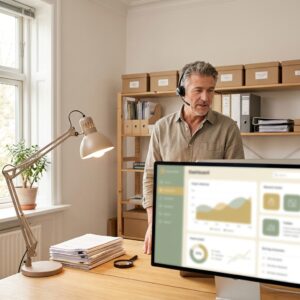
Screen Magnification and Text-to-Speech at Work
Most articles about workplace assistive technology tell you what exists. That’s the easy part, and it’s rarely what’s stopping anyone.
The hard parts are choosing between magnification and speech, getting it installed on a locked-down work computer, and learning it well enough to be fast. That last one gets almost no attention and determines whether the software actually helps.
This guide covers those. For the wider picture on working with vision loss, see our guide to career success with vision loss.
Magnification or Speech — or Both
The first decision shapes everything else.
Screen magnification enlarges what’s on screen, usually with contrast and color adjustment and a smoothing function so enlarged text stays sharp. It suits people with usable central vision who want to keep reading visually.
The trade-off is the viewport. At high magnification you see a small window of a large page, and keeping track of where you are takes effort. Most people find magnification comfortable up to a point and tiring beyond it.
Screen readers convert the screen to speech or braille output. They suit people with very limited or no usable central vision — and anyone whose eyes are too tired to keep reading.
The trade-off is the learning curve, which is real. A screen reader is a different way of operating a computer, not a setting you switch on. Competence takes weeks; fluency takes months.
Most people end up using both, and this is the part that rarely gets said. Magnification for detailed work where you need to see layout — spreadsheets, design, anything spatial. Speech for volume — long documents, email, reading while doing something else.
Switching between them is also a fatigue strategy. Reading visually and listening draw on different resources. Alternating extends how long you can work comfortably, which over a full day matters more than raw speed.
Choosing Magnification
The main things that differentiate magnification tools:
Magnification range. More isn’t better. Higher magnification means a smaller viewport, and most people work most comfortably at a lower level with good contrast than at a high level without.
Contrast and color modes. Frequently more valuable than the magnification itself, particularly if your condition reduces contrast sensitivity. Being able to invert to light-on-dark, or apply a color filter, reduces eye strain substantially across a working day.
Speech support. Several magnification products include speech output, which lets you shift between reading and listening without learning a separate screen reader. If you expect to need both, this is worth prioritizing.
Compatibility with your actual work software. This is the one people skip and regret. Magnification works well with mainstream office applications and less well with some specialised, custom, or browser-based systems. Test with the software you’ll actually use before committing.
Our magnifying software category covers the options.
Choosing a Screen Reader
Compatibility is the deciding factor, more than preference. Some workplace applications work beautifully with screen readers and some barely function. Before you commit to a role or a product, test the actual systems.
The learning curve is the real cost. Budget weeks of reduced productivity, and arrange training rather than teaching yourself from documentation — this is exactly what vocational rehabilitation funds.
Learn it before you need it. The single most useful piece of advice in this whole area: if your vision is progressive, start learning a screen reader while you still have usable sight. You can check your own work, correct mistakes, and learn at your own pace. Learning under pressure after significant vision loss is substantially harder, and people who did it the first way consistently say so.
Our screen reading software category covers what’s available.
Text-to-Speech Without a Full Screen Reader
There’s useful middle ground that gets overlooked.
You don’t need to learn a full screen reader to have documents read aloud. Standalone text-to-speech tools read documents, email, and web pages without changing how you operate your computer.
Built-in options exist too — most operating systems, browsers, and office suites include reading functions that cost nothing and are already installed.
For printed material that never made it into a digital system — forms, handouts, mail — a portable magnifier with speech, or a dedicated reading device, handles what software can’t reach.
This middle path suits a lot of people whose vision doesn’t require a screen reader but whose eyes get tired by mid-afternoon.
Getting It Onto a Work Computer
This is where more setups fail than for any technical reason.
Corporate IT environments restrict software installation. Your assistive technology will need to be approved, procured, and installed by someone else, and that process can take weeks if you don’t drive it.
What makes it go faster:
- Submit a specific request, naming the product and version. “I need accessibility software” starts a conversation; a product name starts a procurement.
- Route it through HR as an accommodation, not through IT as a software request. The former has a legal framework and a timeline; the latter sits in a queue.
- Offer the vendor’s IT documentation. Most assistive technology vendors publish deployment guides written for corporate IT, and handing that over removes the main objection.
- Ask about licensing early. Enterprise licensing differs from individual, and getting that wrong causes delays.
- Name a deadline tied to something real — a start date, a project — rather than leaving it open.
If your employer resists on cost, note that vocational rehabilitation agencies fund workplace technology, and tax credits exist for employers who adapt workplaces. The cost objection usually dissolves once someone knows that.
Our guide to workplace accessibility for low vision covers the accommodation process, and ADA accommodations covers your rights.
Actually Getting Fast
Software you’ve installed and half-learned is the most common outcome, and it’s why people conclude the technology doesn’t help.
Learn the keyboard shortcuts. This is the single biggest difference between slow and fluent. Mouse-driven use of magnification software is painful; keyboard-driven use is quick. Learn ten shortcuts properly rather than skimming a list of eighty.
Get real training. A few hours with a trainer beats weeks of trial and error, and vocational rehabilitation funds it. People consistently underestimate this.
Set it up for your work, not generically. Profiles per application, sensible defaults, contrast settings that suit your conditions. Half an hour of configuration pays back weekly.
Expect to be slower for a while, and tell your manager that in advance. Framing it as a short ramp with a clear end is far better than appearing to struggle without explanation.
Revisit it periodically. Settings that suited you a year ago may not now, particularly if your vision has changed. Most people set up once and never adjust.
Where to Start
If you’re employed and struggling, name the specific task that’s hardest rather than the general difficulty. “Reading spreadsheets takes me three times as long” leads somewhere; “work is hard” doesn’t.
Then get assessed. The right tool depends on your actual functional vision, and guessing is how people end up with software that doesn’t suit them.
New England Low Vision and Blindness provides functional vision assessment and technology training across New England — including trying software with the kind of work you actually do before you commit to it.
Frequently Asked Questions
What is the best screen magnification software for work?
The one compatible with the applications you actually use. Beyond that, look at contrast and color modes rather than maximum magnification, and consider whether built-in speech output would save you learning a separate screen reader. Test before committing.
Should I use magnification or a screen reader?
Magnification if you have usable central vision and want to keep reading visually; a screen reader if your central vision is very limited. Many people use both — magnification for spatial work, speech for volume and for resting their eyes.
Does my employer have to pay for assistive technology?
Employers are required to provide reasonable accommodations under the ADA, which generally includes assistive technology. State vocational rehabilitation agencies also fund workplace equipment, and employer tax credits exist.
How long does it take to learn a screen reader?
Basic competence typically takes several weeks, fluency several months. Formal training shortens this considerably and is usually fundable through vocational rehabilitation. Learning while you still have usable vision is markedly easier.
Can I get assistive software installed on a locked-down work computer?
Usually yes, but it needs to go through approval and procurement. Routing the request through HR as a formal accommodation rather than through IT as a software request tends to be substantially faster.
What if my work software doesn’t work with my assistive technology?
This is common with custom and browser-based systems and is worth testing before accepting a role. Where there’s a conflict, options include vendor accessibility fixes, an alternative tool, or a workflow accommodation. The Job Accommodation Network advises on this free of charge.
Talk With Someone Who Understands Vision Loss
You don’t have to sort this out on your own. New England Low Vision and Blindness can help you choose the right tools for your vision and your actual job, and train you to use them properly — whether you’re living with low vision or you are blind.
Schedule No-Obligation Consultation or call us at 888-211-6933.